

Install & run
DioscHub ships as a single Docker image. The image is the distribution artifact: it carries the backend, the admin portal, and the web server that fronts them. You give it a Postgres database and a set of environment variables, and it serves. This page covers that path start to finish. The full set of security-sensitive settings lives on the Production hardening checklist — work through that before you expose the deployment to real users.
How DioscHub is distributed
Section titled “How DioscHub is distributed”One image runs the whole product. Inside it, a web server listens on port 80 and reverse-proxies
API and WebSocket traffic to the backend on an internal port; the admin portal is served as static
assets from the same origin. You map a host port to 80 and route everything through it — there is no
second service to run.
The container runs as a non-root user (UID 1000), and the process supervisor shuts the backend and
web server down cleanly on SIGTERM. There is no supported bare-metal or non-Docker production path:
the image is how DioscHub is meant to run in production.
What you need before you start
Section titled “What you need before you start”- A PostgreSQL database. DioscHub owns its schema and applies it on boot (see below). The database
needs two extensions available:
uuid-osspandvector(pgvector). If you run your own Postgres, the image can create them on first start; on managed Postgres where extension creation is restricted, enable both before pointing DioscHub at the database. - The boot-required environment. DioscHub refuses to start if a security-sensitive setting is missing or left at a published dev default. The complete list — session and token secrets, the three credential master keys, the database password, and the admin token — is on the Production hardening checklist. Set every one of them before you start the container.
- Persistent storage if you use the local file store. Uploaded and generated files are written under a storage path inside the container; mount a volume there so they survive a restart. (You can instead point DioscHub at S3-compatible object storage — see Upgrades, backup & DR.)
You do not need Redis for a single instance. Redis only enters the picture when you run more than one instance — see Deployment topologies.
Point it at your database
Section titled “Point it at your database”DioscHub reaches Postgres two ways, and in production you set both, pointing at the same database:
| Variable | Purpose |
|---|---|
DB_HOST, DB_PORT, DB_USERNAME, DB_PASSWORD, DB_DATABASE | The primary connection the application and its schema migrations use. |
DATABASE_URL | A libpq-style URL (postgresql://user:pass@host:5432/diosc_hub) that the chat-session store reads separately. |
If only one is set, part of the application cannot connect. Set both to the same Postgres instance and credentials.
DB_PASSWORD must not be the default postgres; the boot gate treats that as an insecure default and
refuses to start.
Start the container
Section titled “Start the container”Run the image with your environment injected and a host port mapped to the container’s port 80. In production, inject environment variables through your orchestrator’s secret mechanism rather than a committed file — the boot secrets are credentials.
docker run \ -p 8080:80 \ -e DB_HOST=... -e DB_PORT=5432 -e DB_USERNAME=... -e DB_PASSWORD=... -e DB_DATABASE=diosc_hub \ -e DATABASE_URL=postgresql://user:pass@host:5432/diosc_hub \ -e JWT_SECRET=... -e SESSION_TOKEN_SECRET=... -e ERASURE_HASH_PEPPER=... \ -e CREDENTIALS_MASTER_KEY=... -e LLM_API_KEY_MASTER_KEY=... -e MCP_AUTH_MASTER_KEY=... \ -e ADMIN_API_TOKEN=... \ -v diosc-storage:/data/storage \ <your-dioschub-image>The value placeholders above are illustrative; generate real secrets as described on the hardening checklist. The volume line is only needed if you use the local file store.
What happens on boot
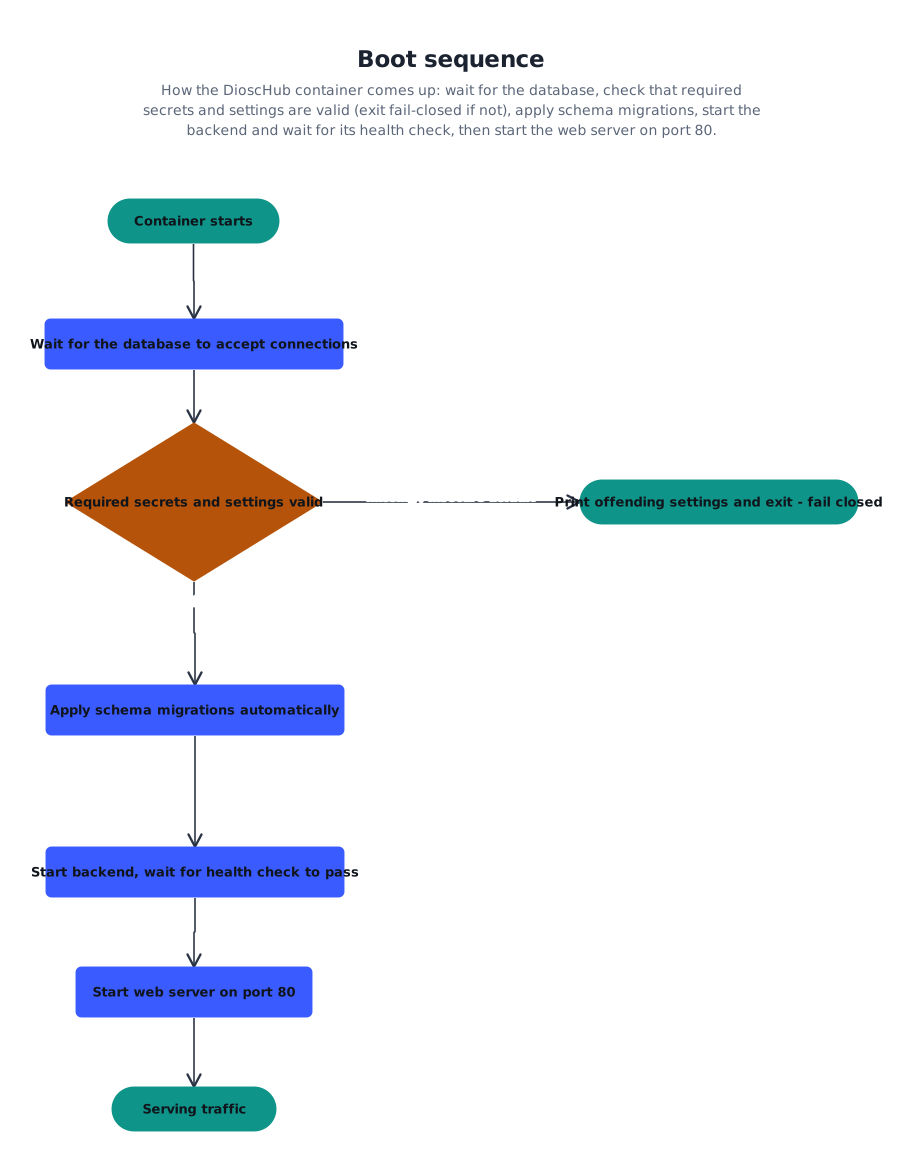
Section titled “What happens on boot”The container brings itself up in order, and each step gates the next:
- It waits for the database to accept connections before doing anything else.
- It checks the environment. The production-safety gate runs first. If any boot-required setting is missing or left at a dev default, it prints the offending settings and exits — it will not serve traffic in an unsafe state.
- It applies the schema. Migrations are bundled into the image and run automatically. On a fresh database they create the schema; on an existing one they adopt it in place and apply only what is new. There is no manual migrate step to run inside the container.
- It starts the backend, waits for it to report healthy, then starts the web server. Only after the backend passes its own health check does the front-end server begin accepting traffic on port 80.
Confirm it came up
Section titled “Confirm it came up”A healthy start ends with the backend reporting it is listening and the web server coming up on port 80. Probe it from outside:
curl -f http://localhost:8080/api/health/api/health returns success once the backend is up and can reach the database. /api/health/live
and /api/health/ready are also available for orchestrator liveness and readiness probes.
If instead the container exits during startup and the logs show a line about refusing to start over insecure production settings, the boot gate has stopped it on purpose. It lists exactly which settings are at fault — fix those environment values and restart. This is the fail-closed behavior working as intended, not a crash.
Local development is a different path
Section titled “Local development is a different path”For working on DioscHub locally, the repository has dev scripts that are not the production container:
npm run start:hubruns the backend directly on port 3333.npm run start:adminruns the admin portal on a Vite dev server on port 7001.
These run the two halves separately with dev tooling. Production is always the single image described above — reach for the container path, not the dev scripts, when you deploy.