

System settings
System settings are deployment-wide — they apply beyond any single Assistant. The screen lives at /settings and needs the settings:manage permission, which every tier grants. This page covers the General tab; the other System tabs are documented on their own pages and linked at the end.
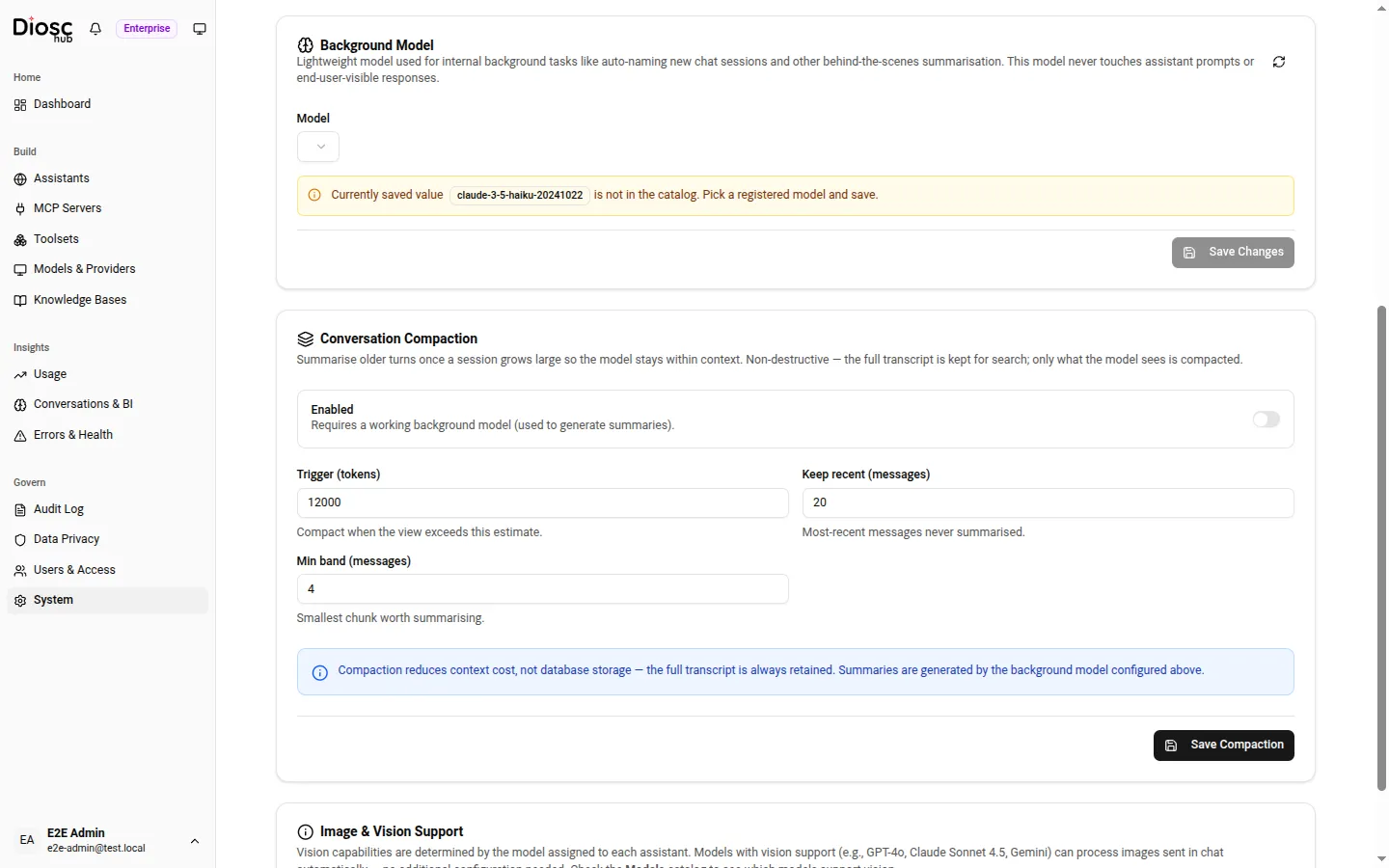
The General tab has four cards: License, Background Model, Conversation Compaction, and Image & Vision Support.
License
Section titled “License”The License card reports the license DioscHub is running under. It shows the Tier (Free, Pro, or Enterprise), the Status (Valid, Grace Period, Expired, or Invalid), who it is Licensed to, the Expires date, and the timestamp it was Last validated. When a license is in its grace period it also shows Grace remaining in days; when it has degraded it shows which tier it degraded from. The card is read-only — it reflects the license, it does not edit it. What each tier unlocks is in Licensing & tiers.
Background model
Section titled “Background model”The Background Model is a lightweight model DioscHub uses for internal, behind-the-scenes work — auto-naming new chat sessions and generating summaries (including conversation compaction, below). It is deliberately separate from the model that runs conversations: it never touches an assistant’s prompt or any end-user-visible response. Pick a cheap, fast model here; the conversation model is set per Assistant in Models.
The selector lists the models in your catalog, grouped by provider; only available models appear. The default is claude-3-5-haiku-20241022. Choose a model and Save Changes. If the saved value is not in the catalog — for example after removing a provider — the card warns you and asks you to pick a registered model.
Conversation compaction
Section titled “Conversation compaction”Conversation Compaction summarizes older turns once a session grows large, so the running conversation stays inside the model’s context window. It is non-destructive: the full transcript is always kept in the database for search and export; compaction only changes what the model sees on the next turn. The summaries are generated by the background model above, so compaction needs a working background model to run.
Compaction is off by default. The controls:
| Field | What it controls |
|---|---|
| Enabled | Turns compaction on. Requires a working background model. |
| Trigger (tokens) | Compact once the model’s view exceeds this token estimate. Default 12000, minimum 256. |
| Keep recent (messages) | The most-recent messages that are never summarized. Default 20. |
| Min band (messages) | The smallest run of messages worth summarizing in one pass. Default 4. |
Save with Save Compaction. Min band should not exceed Keep recent.
Image & vision support
Section titled “Image & vision support”The Image & Vision Support card is informational — there is nothing to configure here. Whether an assistant can read images sent in chat is determined by the model assigned to that assistant: a model with native vision (for example GPT-4o, Claude Sonnet 4.5, or Gemini) processes images automatically, with no extra setting. Knowledge-base image indexing uses the assistant’s own model to generate searchable descriptions. Check which models support vision in the Models catalog.
Other System tabs
Section titled “Other System tabs”The System screen has three more tabs, each documented separately:
- Rate Limits — request, connection, and token-budget defaults for the deployment. See Rate limiting & cost controls.
- Cluster — multi-instance topology and the shared Redis backplane. See Deployment topologies.
- Config Transfer — export and import a deployment’s configuration. See Config transfer.