

Assistants & Roles
An Assistant is the chat your users talk to. It carries the name and greeting they see, the system prompt that shapes its behavior, the model that runs the conversation, and the set of MCP servers it is allowed to reach. A Role then narrows that down per user: which of those tools a given user may call, which knowledge they can search, and which UI features they get.
One Assistant has many Roles. The Assistant is the conversation; the Role is what that conversation is allowed to do for the specific person in it.
Create an Assistant
Section titled “Create an Assistant”Create an Assistant in the admin portal (or over the admin API at POST /admin/assistants). The fields
that shape it:
| Field | What it does |
|---|---|
name, greeting | The identity and opening line the user sees. |
systemPrompt | The base instructions given to the model on every turn — the assistant’s standing brief. |
llmConfig | Which model runs the conversation, and how it reasons. See Models. |
attachedMcpServers | The MCP servers this Assistant may reach — the outer boundary on its tools (below). |
defaultRole | The Role applied to a user who matches no other Role. |
anonymousMode | Whether visitors may chat before signing in. See Anonymous sessions. |
Attaching your MCP servers to the Assistant is what makes their tools available at all. attachedMcpServers
is the envelope: no Role can call a tool from a server that is not attached here, whatever else it is
granted. Attach the servers whose tools this Assistant should ever be able to use, then use Roles to scope
down from there.
Add Roles to scope tools per user
Section titled “Add Roles to scope tools per user”A Role decides what a matched user’s conversation can do. Create Roles under an Assistant (POST /admin/assistants/:assistantId/roles). A Role carries:
promptInstructions— extra instructions appended to the Assistant’s system prompt for this Role, so one Assistant can brief a support agent differently from an end customer.- Tool scope — either
allowAllTools, which grants every tool from the attached servers, or an explicitallowedToolNameslist. WhenallowAllToolsis false, only the tools you name here are callable. features— which widget capabilities this Role’s users get (session history, file upload, and so on).suggestionsand a per-user token budget, if you set one.
Tool scope is enforced in two stages, both of which must pass: the tool’s server must be in the Assistant’s
attachedMcpServers, and the Role must allow the tool. allowAllTools: true therefore means “every
tool from the attached servers” — never every tool in DioscHub.
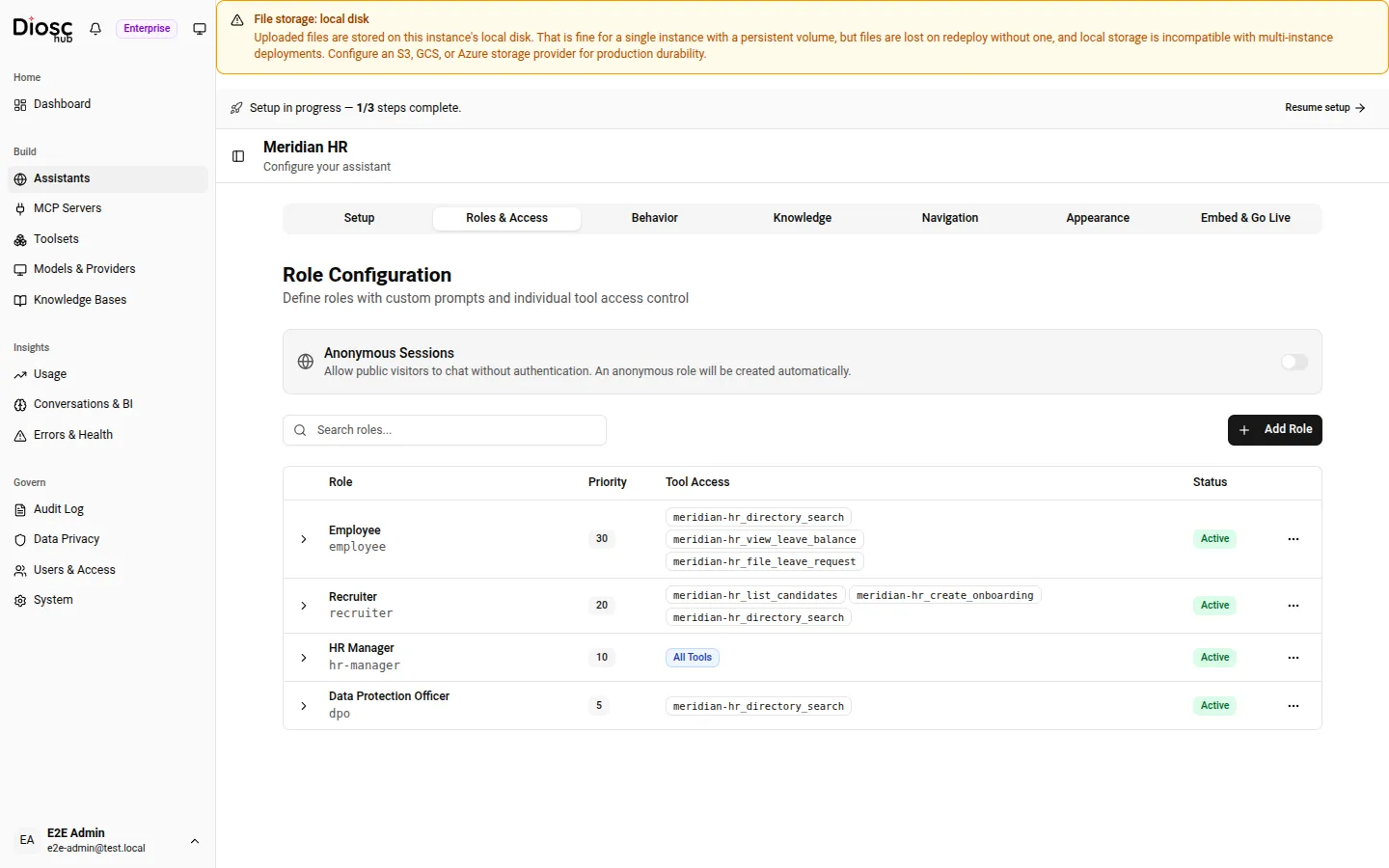
The Roles & Access tab. The Tool Access column is the scope at a glance — “All Tools” for the HR Manager, an explicit allow-list for the narrower roles.
How a user gets a Role
Section titled “How a user gets a Role”DioscHub does not authenticate the user or store their credentials on the Role. Instead, when your backend
binds the session, the identity it asserts carries the user’s role names.
DioscHub matches those against the Assistant’s configured Roles and applies the matching one for the
session; a user who matches none gets the defaultRole. The user’s auth artifacts stay bound to the
Session and are forwarded to your tools — they are never a property of the
Role.
This is the division to keep in mind: the Role supplies the capability (which tools, which knowledge, which features), and the bind supplies the identity (who this is, and which Role they match).
Activate and deactivate
Section titled “Activate and deactivate”An Assistant and each Role have an active flag. Deactivating an Assistant takes it offline without deleting
its configuration; deactivating a Role removes it from resolution so its users fall through to the
defaultRole. Use these to stage changes without tearing anything down.
Next: MCP servers & Toolsets.