

Navigation & Sitemap
The sitemap is the map of your host application’s routes that an Assistant
is allowed to drive. Each entry maps a human label and category to a URL path pattern. Two built-in tools
read this map: sitemap lists the assistant’s known pages to the model, and navigate sends the user’s
browser to one of them. An assistant can only navigate to a path its sitemap declares — an unlisted route is
refused before it ever reaches the client.
You configure the sitemap per Assistant, on the Navigation Sitemap tab of the assistant’s settings.
What an entry is
Section titled “What an entry is”A sitemap entry is one route of your app, stored as a SitemapEntry row against the Assistant. Its fields:
| Field | What it does |
|---|---|
pathPattern | The route, e.g. /dashboard or /products/{productId}/details. Curly-brace segments are placeholders for dynamic routes. Query strings and hashes are not part of the pattern — declare query keys separately (below). |
displayName | The human-readable name shown in the entries table and surfaced to the model. |
description | Free text that tells the model what the page is for, so it picks the right route. |
category | A grouping label (e.g. products, admin, reports) used by the table’s category filter. |
isActive | Whether the entry is live. Only active entries are visible to sitemap and accepted by navigate. |
Entry hierarchy is detected automatically from the path. When you add or edit an entry, DioscHub finds the
existing entry whose pathPattern is the longest prefix of the new path and nests the new entry under it. A
route added as /products/{productId}/reviews is parented to /products/{productId} if that entry exists;
the Add/Edit dialog shows the detected parent before you save. You do not set parents by hand.
The Navigation tab
Section titled “The Navigation tab”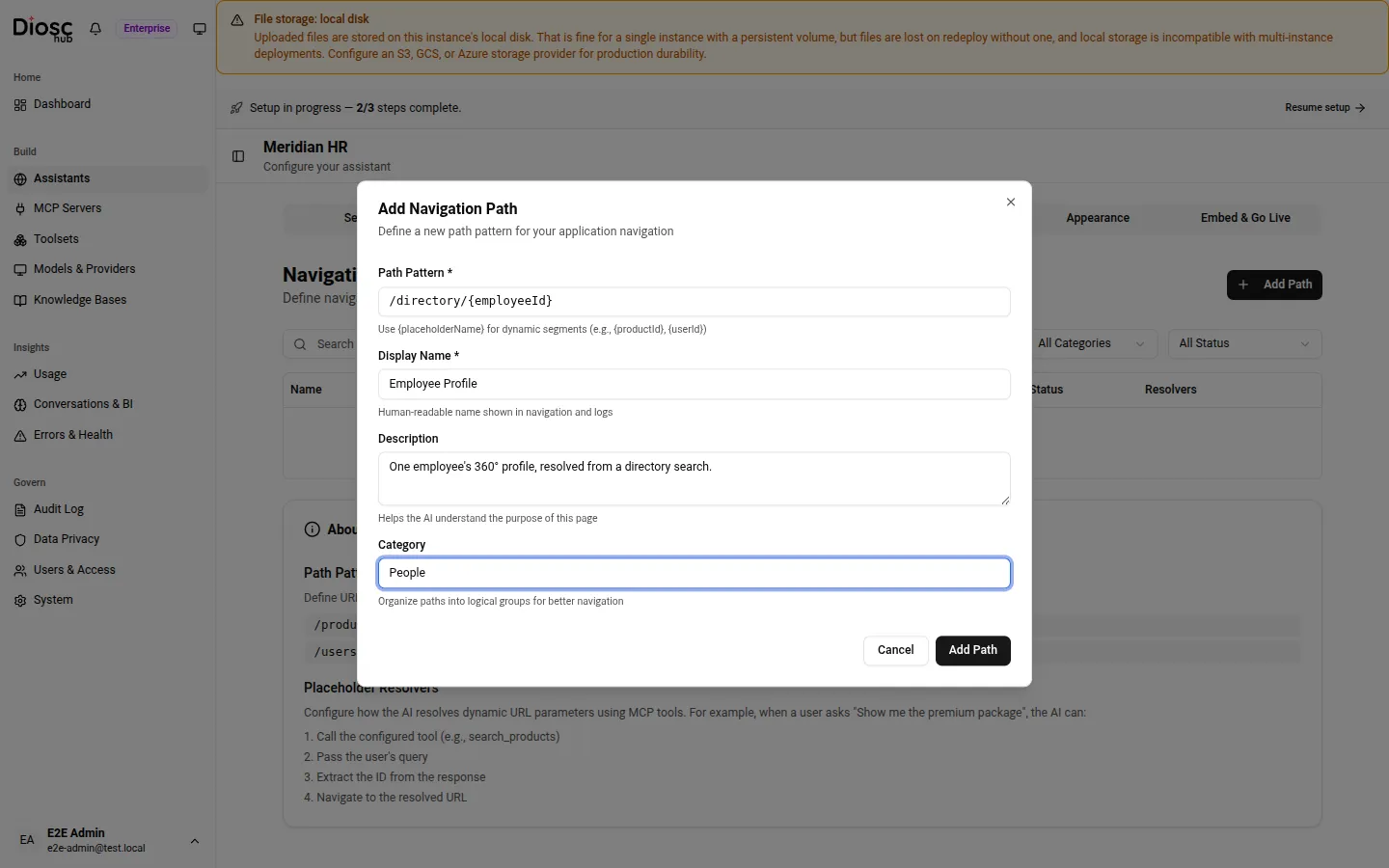
Adding a path. The Path Pattern field takes {placeholder} segments for dynamic routes; the tab itself lists every entry you add.
The tab is a table of the assistant’s entries. Each row shows the display name and category badge, the
pathPattern (with a pill per placeholder), the description, an active/inactive Status toggle, and a
Resolvers column that reads Configured, Needs Setup, or - depending on whether the entry’s
placeholders have resolvers attached.
Above the table:
- Search filters by name, path, or description.
- Category filters to one category.
- Status filters to active-only or inactive-only.
Add Path opens a dialog with the pathPattern, displayName, description, and category fields; the
detected parent is shown once your path prefixes an existing entry. The row’s ⋯ menu holds Edit,
Delete, and — the parameterization controls below — Configure Resolvers and Query Parameters.
The Status toggle activates or deactivates an entry in place without deleting it.
Placeholders and dynamic routes
Section titled “Placeholders and dynamic routes”A path like /products/{productId}/details cannot be navigated to as written — {productId} is not a real
id. The Configure Resolvers dialog (menu item for any entry whose pattern contains placeholders) tells
the assistant how to turn a human search term into the real id at navigate time. For each placeholder you
set:
- MCP Tool — the tool the assistant calls to look the value up (e.g.
search_products). The tool must come from a server attached to this Assistant. - Input Parameter — which of that tool’s arguments receives the user’s search term.
- Output Path — a JSONPath into the tool’s response that yields the id, e.g.
results[0].id. - Search Hint and Example Queries — optional guidance so the model formulates good lookups.
At run time the assistant calls resolve_path with the pattern and the search term. The resolver runs the
configured tool, extracts the id at the output path, and returns a concrete path the assistant can then
navigate to. Resolution is deterministic — it does not take an extra LLM round trip — and each resolver call
is bounded by a 5-second timeout.
Query parameters
Section titled “Query parameters”Query keys live apart from the path so pathPattern stays free of ? (which would break the navigate
validator). Query Parameters (a menu item on every entry) declares the query contract for a page — a
search or filtered-list route such as /tasks?status=overdue&assignee={userId}. For each key you set its
Name, whether it is Required, whether it is Repeatable (multi-valued, e.g. ?label=a&label=b),
an optional set of Allowed values, and — for id-valued keys — an optional resolver identical to a
placeholder resolver. Literal keys (a free-text search term) pass through unchanged.
The sitemap tool advertises each page’s declared query keys to the model; resolve_path validates the
values the model supplies against that contract (dropping unknown keys, enforcing allowed values, resolving
id-valued keys), URL-encodes them, and appends the query string. The model never hand-assembles a URL.
How navigate uses the sitemap
Section titled “How navigate uses the sitemap”The navigate tool is what actually moves the user’s browser, and it is gated by the sitemap:
- It rejects any path that still contains an unresolved
{placeholder}and tells the model to callresolve_pathfirst. - It checks the path (ignoring any
?query#hash) against the Assistant’s active entries — by exact match for static routes, or by pattern match for routes with placeholders. A path matching no active entry is returned asBLOCKED / UNKNOWN_PATHand the navigation does not happen. - On a match, it interrupts the graph and hands the path to the client, which performs the navigation and reports back.
So the sitemap is both the discovery surface (sitemap lists the pages) and the allowlist (navigate
refuses anything not on it). Deactivating an entry removes it from both immediately.
Related: Assistants & Roles · MCP servers & Toolsets · Widget placement · Frontend integration.