Users & API Keys
Manage admin portal users, assign roles, and create API keys for programmatic access.
Users
Users List
Navigate to Users in the sidebar to see all portal users.
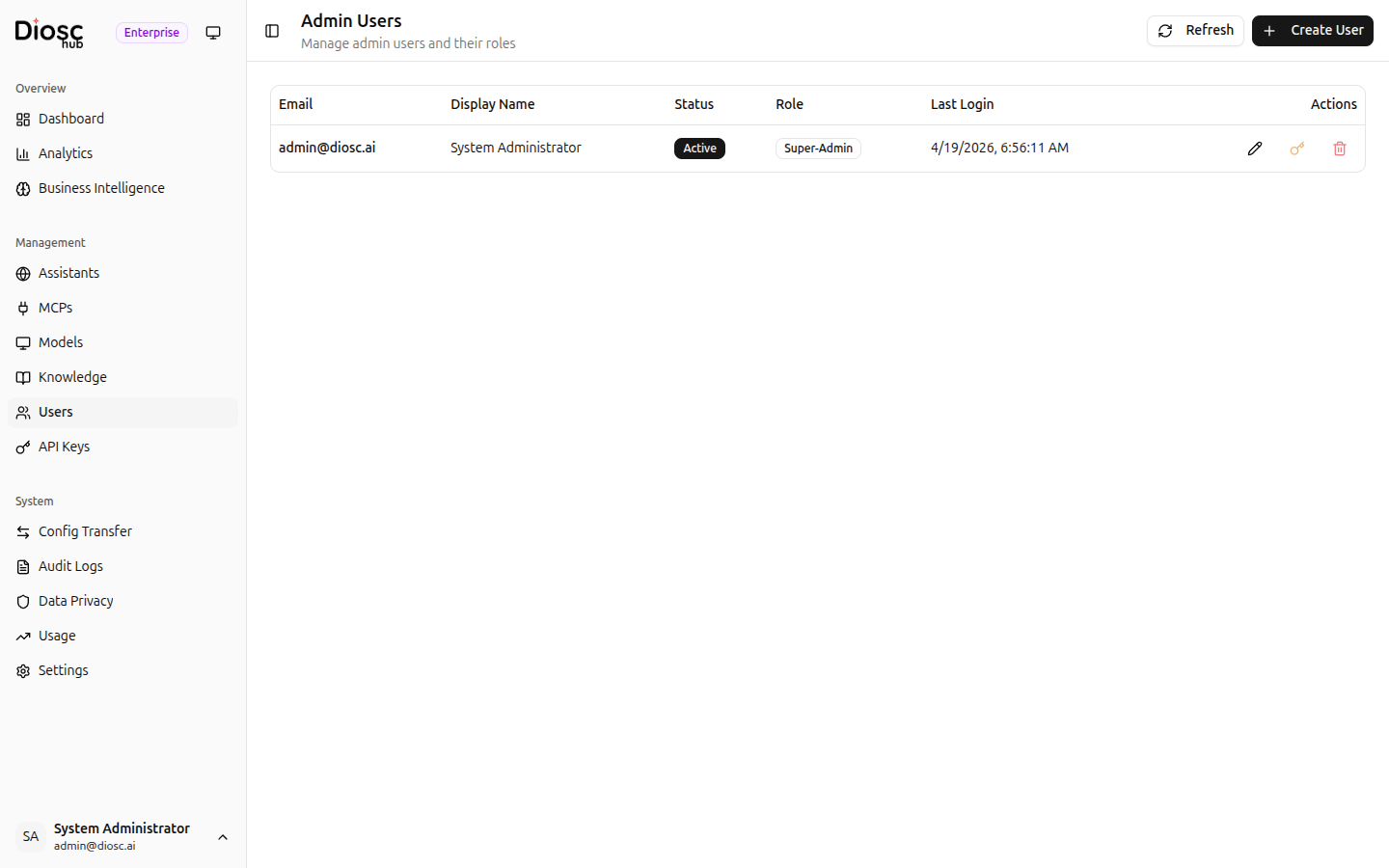
Each user shows:
- Email — Login email address
- Display Name — User's display name
- Roles — Assigned roles (super-admin, admin, read-only)
- Status — Active or Inactive
- Last Login — When the user last signed in
- Actions — Edit, Reset Password, Delete
Creating a User
Click Create User to add a new portal user.
| Field | Description | Required |
|---|---|---|
| Login email address | Yes | |
| Display Name | User's display name | Yes |
| Password | Initial password | Yes |
| Roles | One or more roles (super-admin, admin, read-only) | Yes |
Only super-admin users can create new users.
Editing a User
Click Edit to modify a user's display name, roles, or status. Available to admin and super-admin users.
Resetting a Password
Click Reset Password to set a new password for a user. Only super-admin users can reset passwords, and you cannot reset your own password from this page.
Deleting a User
Click Delete to remove a user from the portal. Only super-admin users can delete users, and you cannot delete your own account.
Role Permissions
| Action | Required Role |
|---|---|
| View users | Admin, Super-Admin |
| Create user | Super-Admin |
| Edit user | Admin, Super-Admin |
| Reset password | Super-Admin |
| Delete user | Super-Admin |
API Keys
API Keys List
Navigate to API Keys in the sidebar to manage API keys.
Four metric cards are displayed at the top:
| Metric | Description |
|---|---|
| Total Keys | Total number of API keys |
| Active Keys | Keys currently active |
| Expired Keys | Keys that have expired |
| API Calls Today | Number of API calls made today |
Each key shows:
- Name & Description — Key identifier and purpose
- Key — Masked key showing prefix and suffix
- Scopes — Permission scopes assigned to the key
- Last Used — When the key was last used (relative time)
- Expires — Expiration date or "Never"
- Status — Active, Revoked, or Expired
Creating an API Key
Click Create API Key to generate a new key.
| Field | Description | Required |
|---|---|---|
| Name | Descriptive name for the key | Yes |
| Description | What this key is used for | No |
| Scopes | Permission scopes (e.g., read, write, admin) | Yes |
| Expiration | When the key expires (or never) | No |
The full API key is only shown once at creation. Copy it immediately — it cannot be retrieved later.
Viewing Key Details
Click a key to open the details dialog showing full configuration, scopes, and usage history.
Revoking a Key
Click Revoke from the actions dropdown to immediately disable a key. Revoked keys can no longer authenticate API requests.
Deleting a Key
Click Delete to permanently remove an API key from the system.
Next Steps
- Global Settings — System-wide configuration
- Monitoring — View administrative action history