MCP Configuration
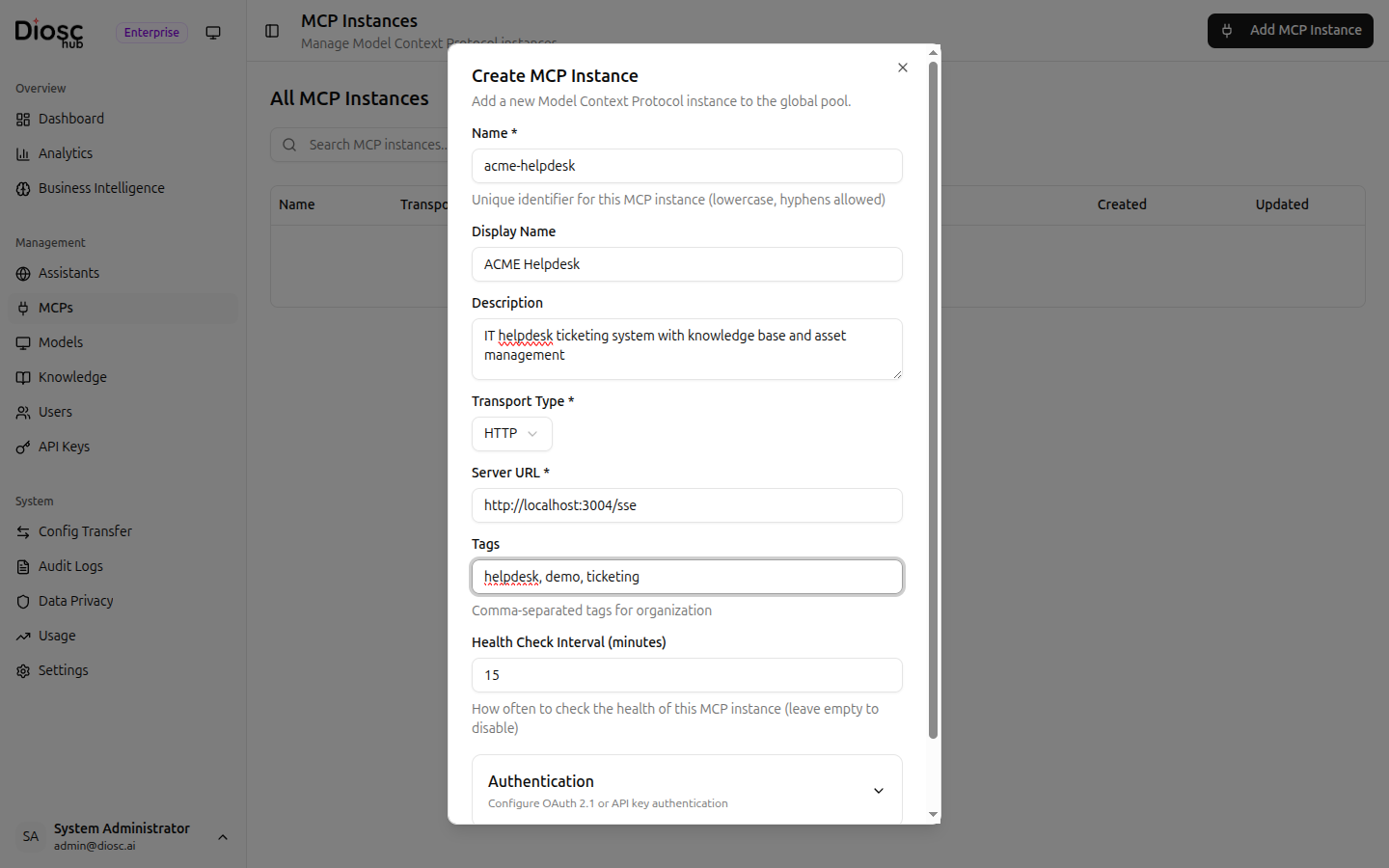
Click an MCP server to open its settings. The settings are organized into tabs: General, Auth, Tools, Approval, and Errors.
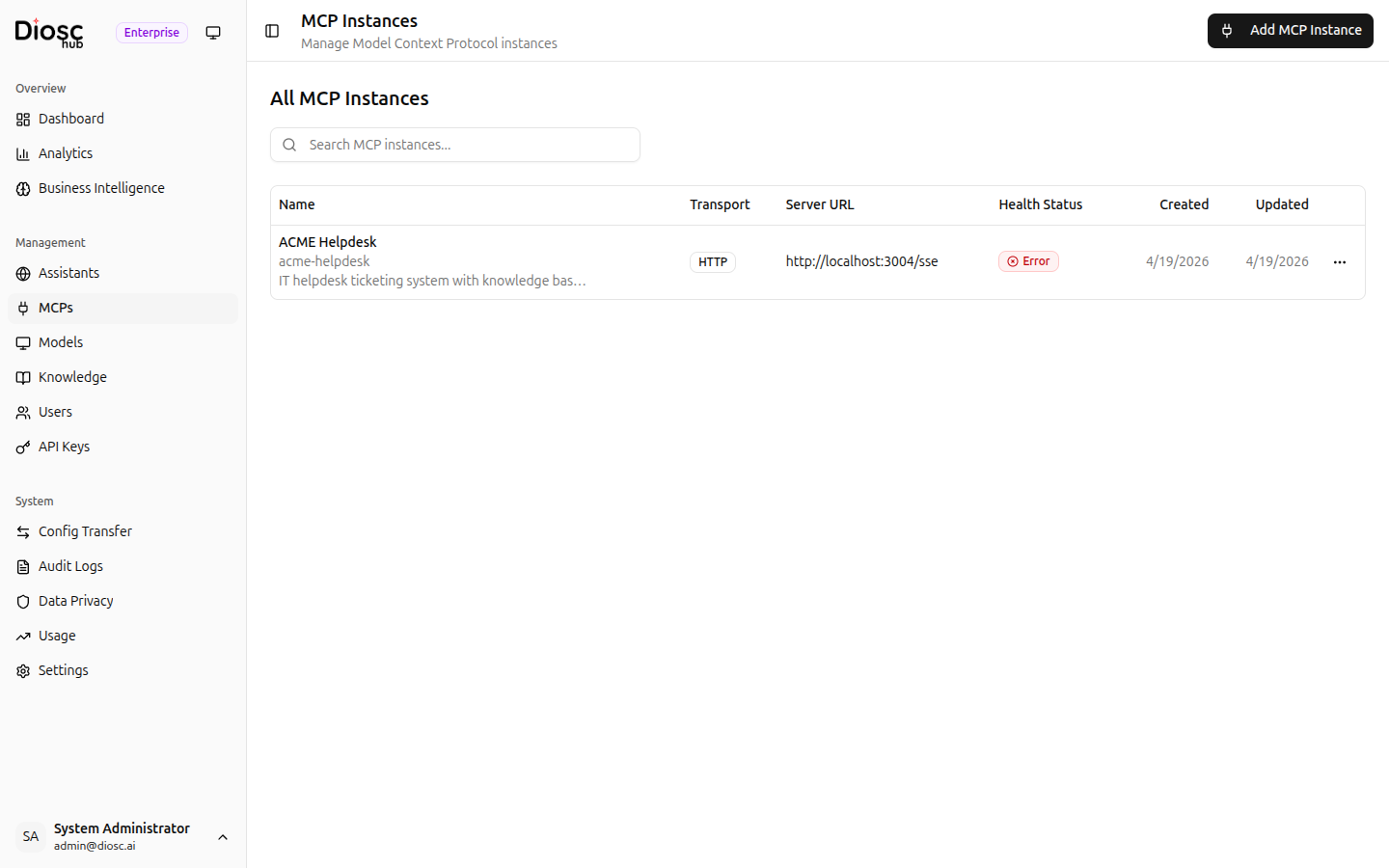
General Tab
| Field | Description |
|---|---|
| Display Name | Human-readable name shown in the admin portal |
| URL | SSE endpoint URL |
| Status | Active/Inactive toggle |
Auth Tab
Configure how Diosc authenticates with the MCP server:
| Setting | Description |
|---|---|
| API Key | Static API key for server authentication |
| Custom Headers | Additional headers sent with requests |
This is for authenticating Diosc to the MCP server, not user authentication. User credentials are forwarded automatically via BYOA.
Tools Tab
Browse all tools and resources discovered from the MCP server.
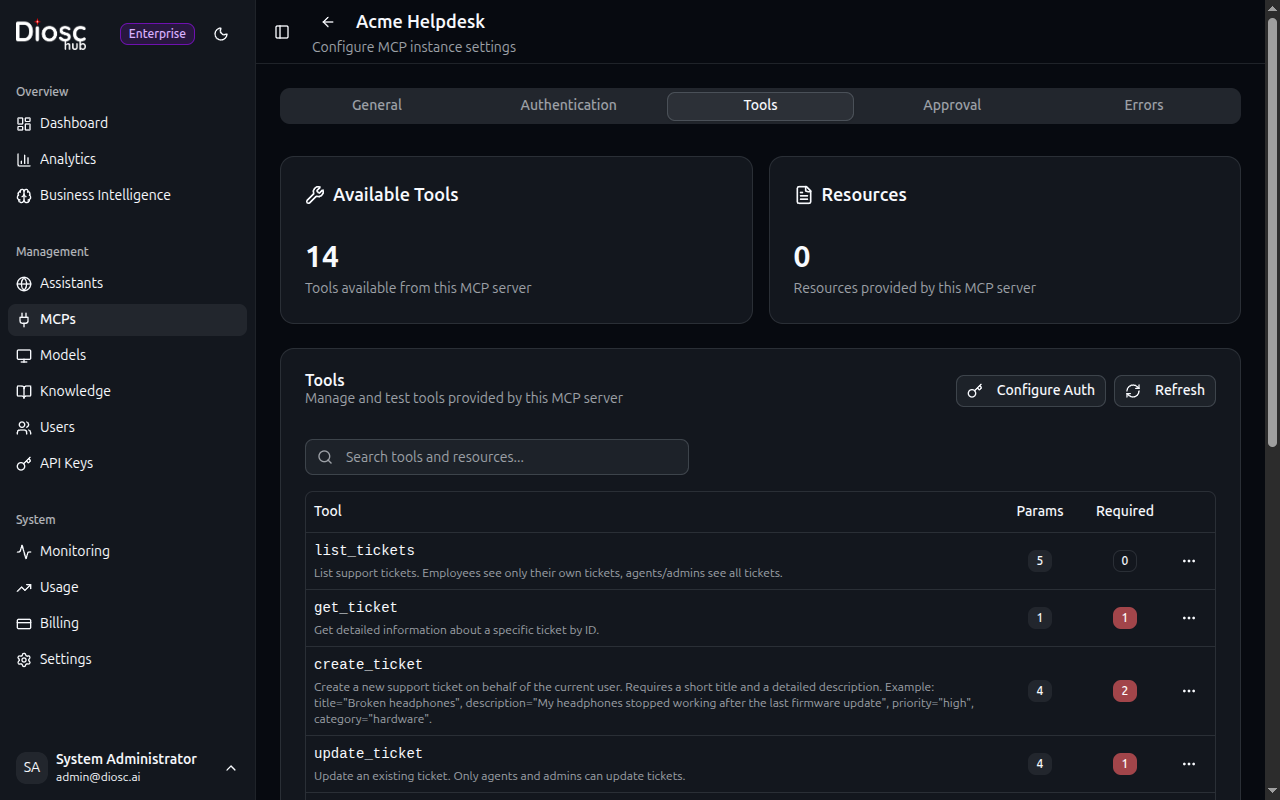
Summary cards at the top show the total Available Tools and Resources counts. The tools table shows:
- Name — Tool identifier (e.g.,
search_orders) - Description — What the tool does
- Params — Number of parameters
- Required — Number of required parameters
Use the search bar to filter tools by name or description.
Tool Details
Click View Details on any tool to inspect its schema:
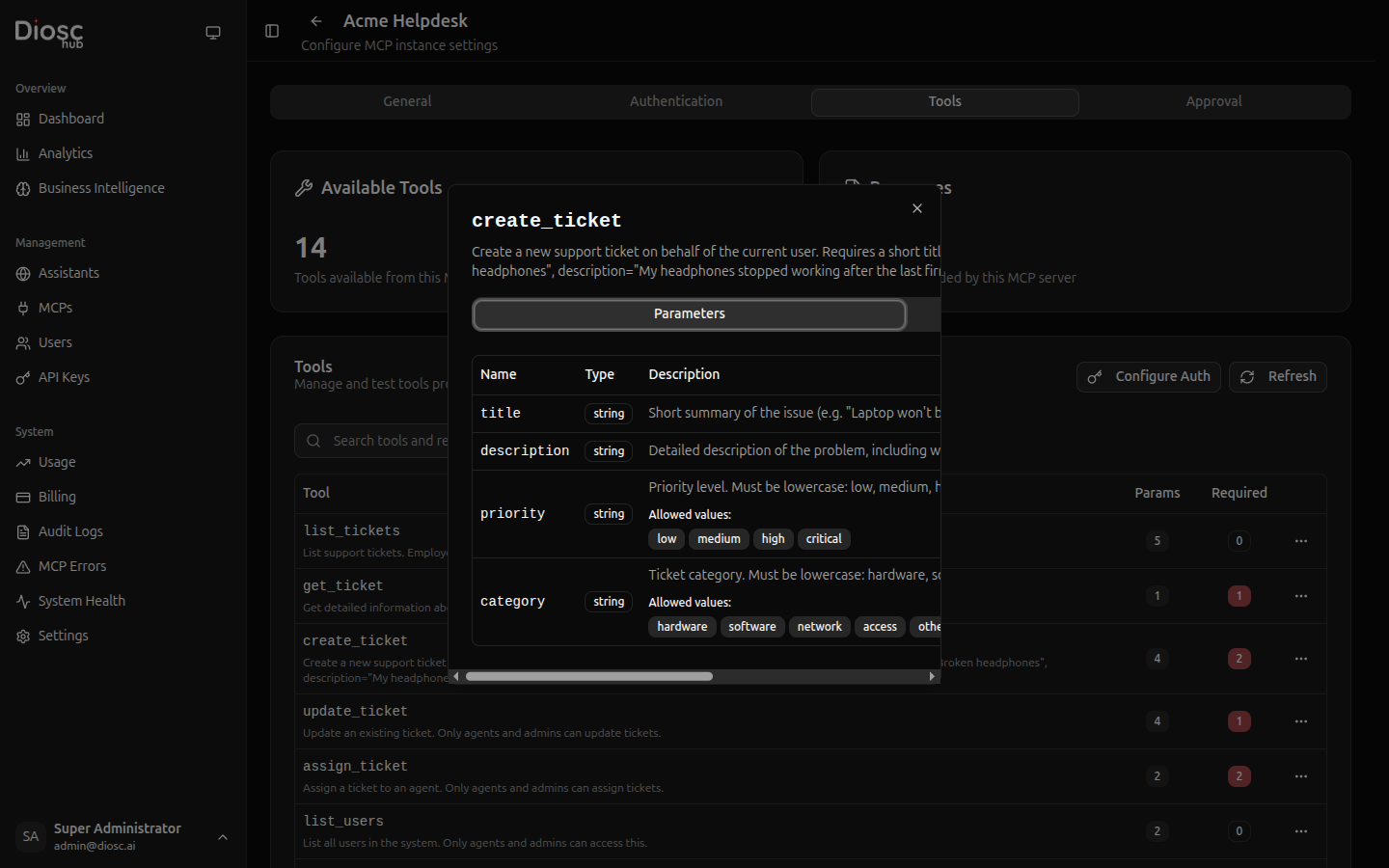
The details dialog has two tabs:
- Parameters — Table showing each parameter's name, type, description, and whether it is required
- JSON Schema — The full JSON Schema definition for the tool's input
Testing a Tool
Click Test Tool from the actions dropdown on any tool to open the testing dialog. This lets you execute the tool directly from the admin portal to verify it works correctly.
Input Modes
Toggle between two input modes:
- Form Mode — Auto-generated form fields for each parameter with proper input types (text, number, dropdown for enums, toggle for booleans). Required fields are marked with a red asterisk.
- JSON Mode — Raw JSON textarea for manual input. Changes sync between form and JSON modes automatically.
Authentication for Testing
Click Configure Auth to provide credentials that will be forwarded to the MCP server with the tool call. This follows the BYOA (Bring Your Own Auth) principle — the tool executes with your permissions, not elevated system credentials.
| Setting | Description |
|---|---|
| Headers | Key-value pairs forwarded as HTTP headers (e.g., Authorization: Bearer <token>) |
| Cookies | Cookie string forwarded to the MCP server (e.g., sessionId=abc123; userId=user456) |
Copy cookies from your browser DevTools (Network tab) to test with your current session credentials.
Response
After clicking Call Tool, the result panel shows:
- Execution time in milliseconds
- Response data formatted as JSON
- Error message if the call failed
Resources
Below the tools table, a resources section lists any resources the MCP server exposes, showing each resource's name, URI, MIME type, and description.
Approval Tab
Configure which tools require user approval before execution.
Tools are selected individually from a list — click Add Tools to open a dialog showing all available tools from this server. Toggle the switches to select which tools require approval.
For each tool requiring approval, you can configure:
| Setting | Description |
|---|---|
| Risk Level | Low, Medium, High, or Critical |
| Timeout | How long to wait for approval (seconds) |
| Timeout Action | Auto-approve or auto-reject on timeout |
| Entity Context | Optional: configure a companion tool to fetch context for the approval dialog |
Risk Levels
| Level | Description |
|---|---|
| Low | Minor operations, self-approval sufficient |
| Medium | Standard operations, review recommended |
| High | Sensitive operations, careful review required |
| Critical | Destructive or irreversible operations |
Entity Context
Entity context lets you attach additional information to approval requests. When a tool requires approval, Diosc can call a companion tool to fetch relevant data and display it alongside the approval dialog. For example, when approving a delete_order request, entity context could fetch the order details so the approver sees what they're approving.
For assistant-level approval policies with conditions, patterns, and approver configuration, see Approval Policies.
Errors Tab
The Errors tab shows error logs specific to this MCP server instance. This helps you diagnose connectivity issues, authentication failures, and tool execution problems without navigating to a global view.
Statistics Cards
Five cards show 7-day error statistics for this instance:
| Card | Description |
|---|---|
| Total Errors | Total errors from this instance in the last 7 days |
| Network Errors | Connection timeouts and unreachable errors |
| Server Errors | 5xx responses from the MCP server |
| Auth Errors | 401/403 authentication or authorization failures |
| Top Failing Tool | The tool with the most errors on this instance |
Error Categories
Errors are automatically classified into categories:
| Category | Badge Color | Description | Retryable |
|---|---|---|---|
| Network | Blue | Connection refused, timeout, DNS failures | Yes |
| Auth | Yellow | 401 Unauthorized, 403 Forbidden | No |
| Client Error | Orange | 400 Bad Request, 404 Not Found, 422 Validation | No |
| Server Error | Red | 500 Internal Server Error, 502/503/504 | No |
| Circuit Open | Purple | Circuit breaker triggered after repeated failures | No |
| Unknown | Gray | Unclassified errors | No |
Error Table
Each error entry shows:
| Column | Description |
|---|---|
| Category | Color-coded error type badge |
| Tool | Which tool call failed |
| Error Message | Sanitized error description with HTTP status code |
| Retries | Number of automatic retry attempts (highlighted when > 0) |
| Duration | How long the failed request took |
| Timestamp | When the error occurred |
Filtering & Search
- Search — Free-text search across error messages
- Category — Filter by error type (network, auth, client_error, server_error, circuit_open)
- Tool — Filter by specific tool name
- Date Range — Filter by time period
- Clear All — Reset all filters
Error Details
Click Details on any error to see the full context:
- Summary — Tool name, duration, timestamp
- Error Info — Retry count, retryable status, HTTP status code
- Error Message — Full error text (sanitized to remove credentials)
- Session & Context — Session ID, Assistant ID for tracing the conversation that triggered the error
- Tool Parameters — The parameters that were sent (sensitive values redacted)
- Metadata — Additional error context
Export
Click Export CSV to download the filtered error logs for this instance. The export includes all error details for offline analysis or incident reporting.
Common Troubleshooting Patterns
| Pattern | Likely Cause | Action |
|---|---|---|
| Spike in Network errors | MCP server down or network issue | Check server status and connectivity |
| Repeated Auth errors | Expired or invalid API key | Update credentials in the Authentication tab |
| Circuit Open errors | Server repeatedly failing | The circuit breaker is protecting your system; investigate the underlying server issue |
| Single tool with high Client Error count | Schema mismatch or invalid parameters | Check tool schema matches the MCP server version |
| Server Error on specific tools | Bug in MCP server tool handler | Review MCP server logs for the affected tool |
Errors older than 30 days are automatically cleaned up. Export regularly if you need long-term error records.
Next Steps
- Managing MCP Servers — Server list, creation, and health monitoring
- Approval Policies — Assistant-level approval workflows
- Monitoring — Audit logs and system health