Managing Models
The Models page is where you manage the LLM model catalog and provider credentials. Navigate to Models in the sidebar to access it.
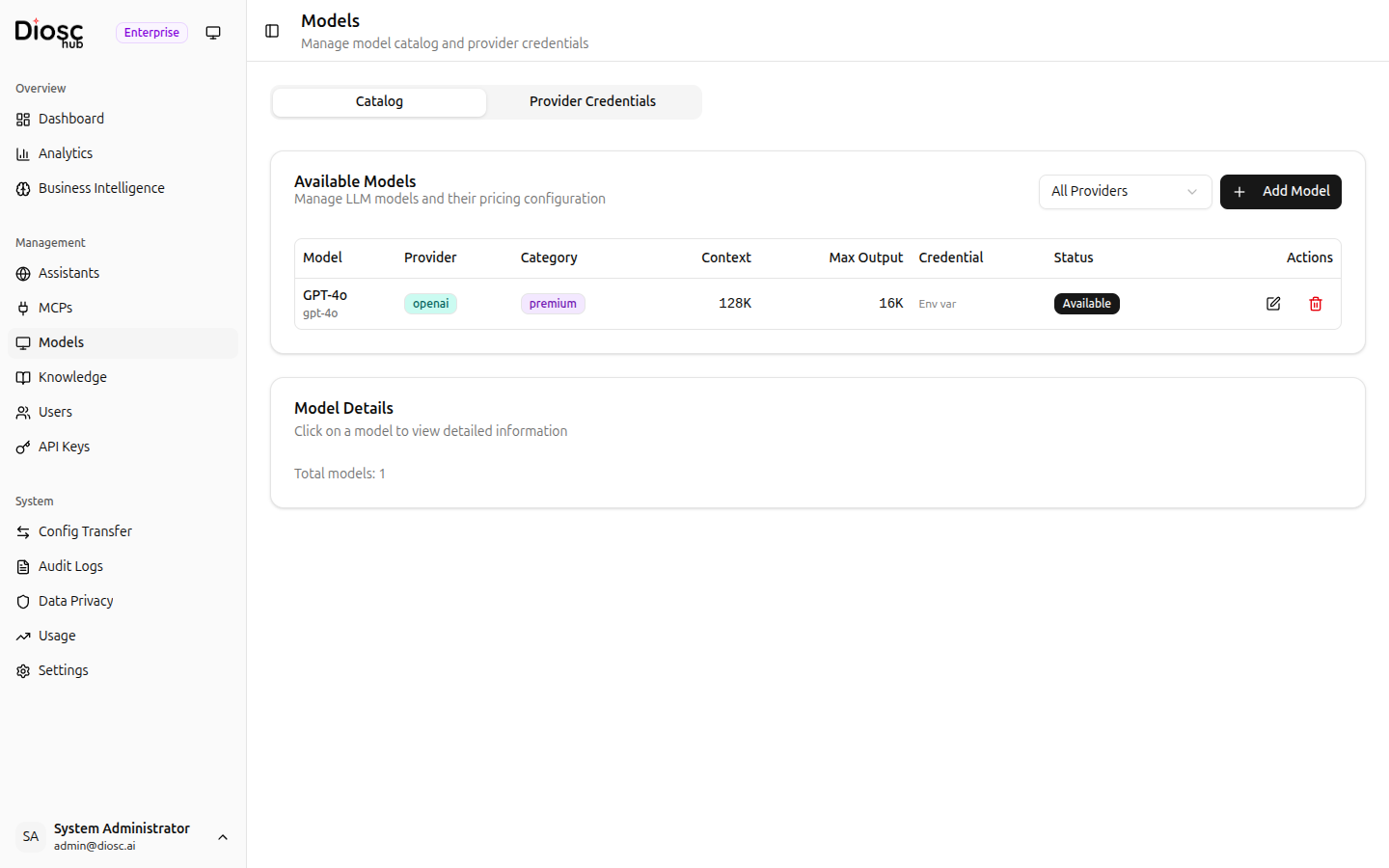
The page has two tabs: Catalog and Provider Credentials.
Catalog
The catalog lists all available LLM models that assistants can use. Models come pre-seeded with common providers (Anthropic, OpenAI, Google, etc.) and can be customized.
Model Table
Each model shows:
| Column | Description |
|---|---|
| Model | Display name and provider-specific model identifier |
| Provider | LLM provider with colored badge (e.g., Anthropic, OpenAI, Google) |
| Category | Tier badge — Premium, Standard, or Budget |
| Context | Maximum input context size |
| Max Output | Maximum output tokens |
| Credential | Linked provider credential (if any) |
| Status | Availability toggle with warning if API key is missing |
| Actions | Edit and delete actions |
Filtering
Use the Provider dropdown above the table to filter models by provider (e.g., All Providers, Anthropic, OpenAI).
Adding a Model
Click Add Model to open a scroll-view dialog with three sections.
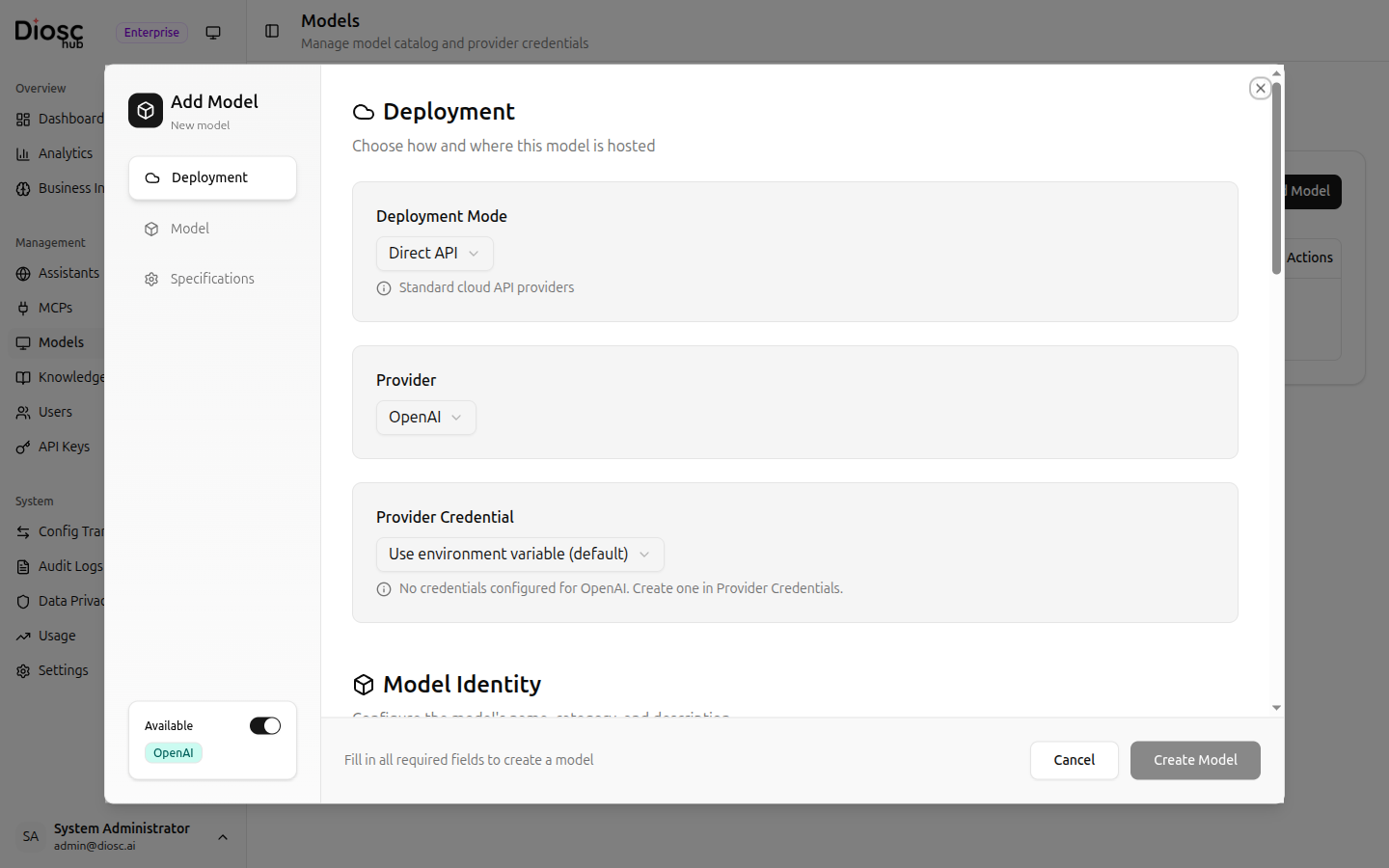
Deployment
| Field | Description | Required |
|---|---|---|
| Deployment Mode | How the model is deployed | Yes |
| Provider | LLM provider | Yes |
| Provider Credential | Linked provider credential for authentication | No |
Model Identity
| Field | Description | Required |
|---|---|---|
| Model ID | Provider-specific model identifier (e.g., claude-sonnet-4-20250514) | Yes |
| Display Name | Human-readable name | Yes |
| Category | Premium, Standard, or Budget | No |
| Description | Model description and capabilities | No |
Specifications
| Field | Description | Required |
|---|---|---|
| Context Window | Maximum context size | Yes |
| Max Output Tokens | Maximum generation length | No |
| Features | Supported features (e.g., vision, function calling) | No |
| Release Date | When the model was released | No |
Editing and Deleting
Click a model row to edit its configuration. Use the delete action to remove a model from the catalog.
Use the Category field to organize models into tiers. When configuring an assistant's model, models are grouped by category so administrators can easily choose between Premium models (for complex reasoning) and Budget models (for high-volume simple tasks).
Provider Credentials
The Provider Credentials tab lets you centralize API key management for LLM providers.
Instead of configuring API keys in environment variables or per-model, you can create named credentials and link them to multiple models.
Creating a Credential
Click New Credential to create a provider credential.
| Field | Description | Required |
|---|---|---|
| Name | A descriptive name (e.g., "Production Anthropic Key") | Yes |
| Provider | The LLM provider this credential is for | Yes |
| API Key | The provider's API key | Yes |
Linking to Models
After creating a credential, link it to models in the Catalog tab. Models linked to a credential will use its API key for inference requests. The Credential column in the catalog table shows which credential each model uses.
Benefits
- Centralized rotation — Update one credential instead of multiple configurations
- Provider isolation — Use different API keys for different providers
- Visibility — See at a glance which models have valid credentials
Models without a linked credential fall back to environment-variable-based API keys. Provider credentials are optional but recommended for production deployments.
Model Categories
Models are organized into three tiers to help with assistant configuration:
| Category | Use Case | Example Models |
|---|---|---|
| Premium | Complex reasoning, coding, analysis | Claude Opus 4, GPT-4o |
| Standard | General-purpose tasks | Claude Sonnet 4, GPT-4o Mini |
| Budget | High-volume, simple tasks | Claude Haiku 3.5 |
When configuring an assistant's model settings, the model selector groups available models by these categories.
Next Steps
- Model Configuration — Configure model parameters per assistant
- Global Settings — Rate limits and system settings
- Usage — Monitor token usage