Roles
Roles customize AI behavior based on user type. Configure roles to give different users different experiences with the same assistant.
Roles List
Navigate to an assistant's Roles tab to see all configured roles.
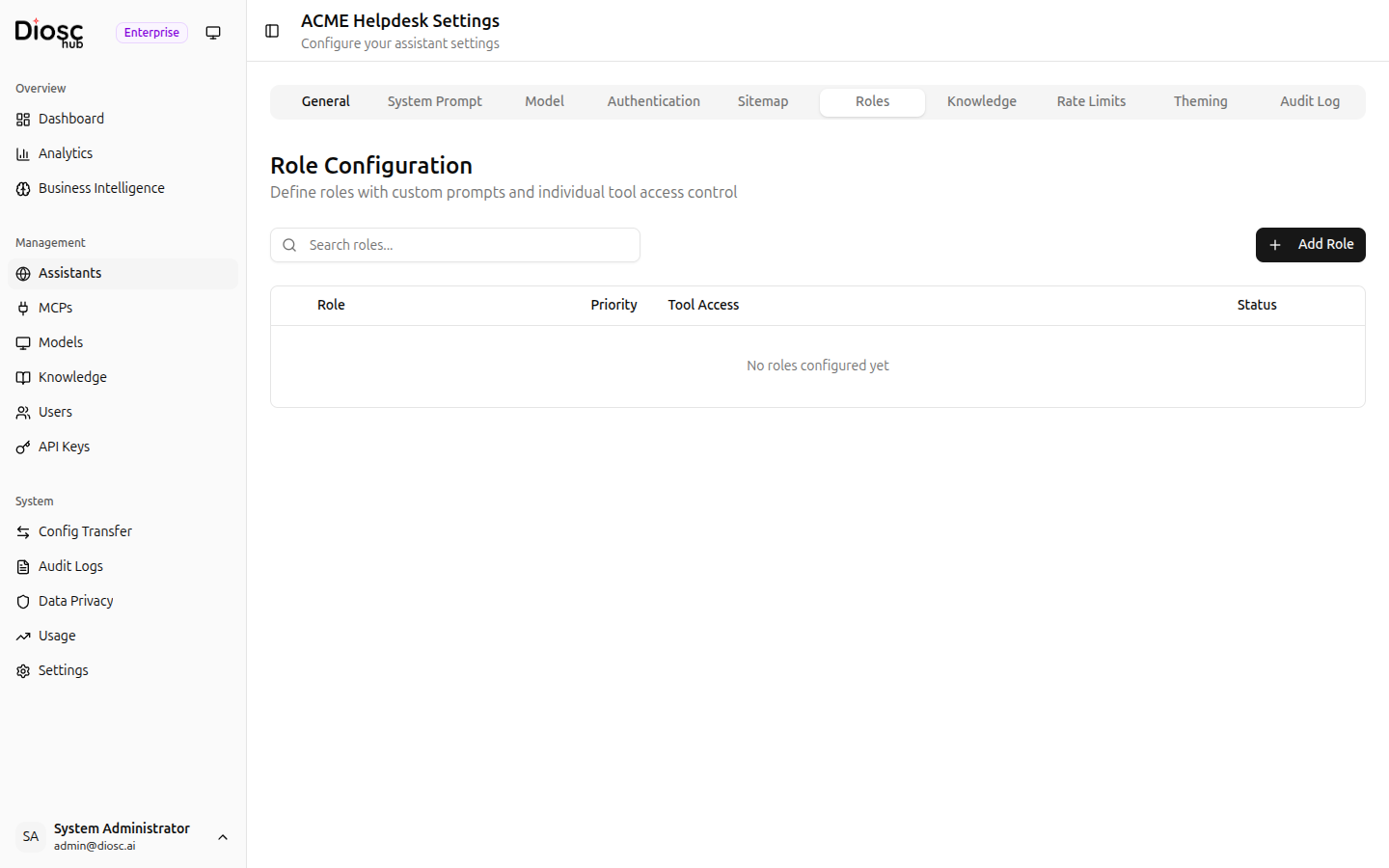
Each role shows:
- Role — Role identifier
- Priority — Order when user has multiple roles
- Tool Access — Tool access level
- Status — Active/Inactive
Creating a Role
Click + Add Role to add a new role.
Basic Settings
| Field | Description | Required |
|---|---|---|
| Role Name | Identifier matching your auth system (e.g., admin) | Yes |
| Display Name | Human-readable name (e.g., Administrator) | Yes |
| Priority | Higher number = higher priority when user has multiple roles | Yes |
| Description | What this role is for | No |
Prompt Instructions
Add role-specific instructions to the AI's system prompt:
You are assisting an administrator. You have access to all system functions.

You can help with:
- User management and permissions
- System configuration
- Viewing audit logs
- Managing integrations

Be direct and technical in your responses. You can assume familiarity with the system.
Tips for effective prompts:
- Be specific about what the role CAN do
- Mention what the role should NOT do
- Adjust tone and language for the audience
- Reference available tools
Tool Access
Control which MCP tools this role can use.
Allow All Tools
Toggle Allow All Tools to grant the role access to every available tool. This is appropriate for admin-level roles.
Allowed Tool Names
When Allow All Tools is off, select specific tools from the list of available tools. Only the tools you select will be accessible to users with this role.
Tool names must match exactly — there is no wildcard or pattern matching. The admin portal provides a searchable list of all tools discovered from connected MCP servers.
UI Customization (Optional)
Customize the chat interface per role:
| Setting | Description |
|---|---|
| Welcome Message | Role-specific greeting |
| Suggested Questions | Pre-filled question chips |
| Theme Override | Different colors for this role |
Role Priority
When a user has multiple roles, priority determines behavior:
Priority 100: super_admin
Priority 80:  admin
Priority 50:  manager
Priority 30:  editor
Priority 10:  viewer
Rules:
- Higher number = higher priority
- Prompt instructions come from highest priority role
- Tool access is combined (union of all role permissions)
- If any role has
allowAllToolsenabled, the user gets access to all tools
Example
User has roles: ["editor", "billing_admin"]
editor (priority 30):
  - allowAllTools: false
  - allowedToolNames: [edit_content, create_content, search_content]

billing_admin (priority 50):
  - allowAllTools: false
  - allowedToolNames: [get_invoice, create_invoice, search_billing]
Result:
- Prompt: From
billing_admin(higher priority) - Tools:
edit_content,create_content,search_content,get_invoice,create_invoice,search_billing(combined)
Default Role
Configure a fallback role when:
- User resolver fails
- User has no matching roles
- Anonymous users (if allowed)
- Go to Assistant Settings > General
- Find Default Role
- Select the fallback role
Best practice: Make the default role restrictive (e.g., viewer).
Role Examples
E-commerce System
Admin
name: admin
priority: 100
prompt: |
  You are assisting a store administrator with full system access.
  You can manage orders, customers, inventory, and settings.
allow_all_tools: true
Customer Service
name: customer_service
priority: 50
prompt: |
  You are assisting a customer service representative.
  Help them look up orders, process returns, and assist customers.
  Do not modify pricing or inventory.
allow_all_tools: false
allowed_tool_names:
  - get_order
  - search_orders
  - get_customer
  - search_customers
  - create_ticket
  - process_return
Customer
name: customer
priority: 10
prompt: |
  You are helping a customer with their account.
  Only access their own orders and information.
  Be friendly and helpful.
allow_all_tools: false
allowed_tool_names:
  - get_my_orders
  - track_order
  - update_my_profile
Role Hierarchy
Roles don't have built-in inheritance. Instead, use priority to determine which role's prompt instructions apply when a user has multiple roles. For tool access, all roles' allowed tools are combined.
Best Practices
Naming
Match your application's existing role names:
# Good - matches existing system
admin, editor, viewer

# Bad - confusing
role_level_1, power_user, basic_user
Start Restrictive
Begin with allowAllTools: false and a small set of tool names, then add more as needed:
# Start here
allow_all_tools: false
allowed_tool_names: [get_order, search_orders]

# Add more as requirements clarify
allowed_tool_names: [get_order, search_orders, create_order]
Document Clearly
Make prompt instructions explicit:
You CAN:
- View all orders
- Process refunds under $100

You CANNOT:
- Delete orders
- Access other users' data
- Modify system settings
Test Thoroughly
- Test each role individually
- Test users with multiple roles
- Test edge cases (no roles, invalid roles)
- Verify tool access works correctly
Next Steps
- Knowledge — Link knowledge bases to the assistant
- User Resolution — Return roles from your webhook
- MCP Servers — Manage tool sources