Managing Assistants
Assistants are the core of Diosc. Each assistant is a configured AI agent with its own personality, tools, and behavior rules.
Assistants List
Navigate to Assistants in the sidebar to see all configured assistants.
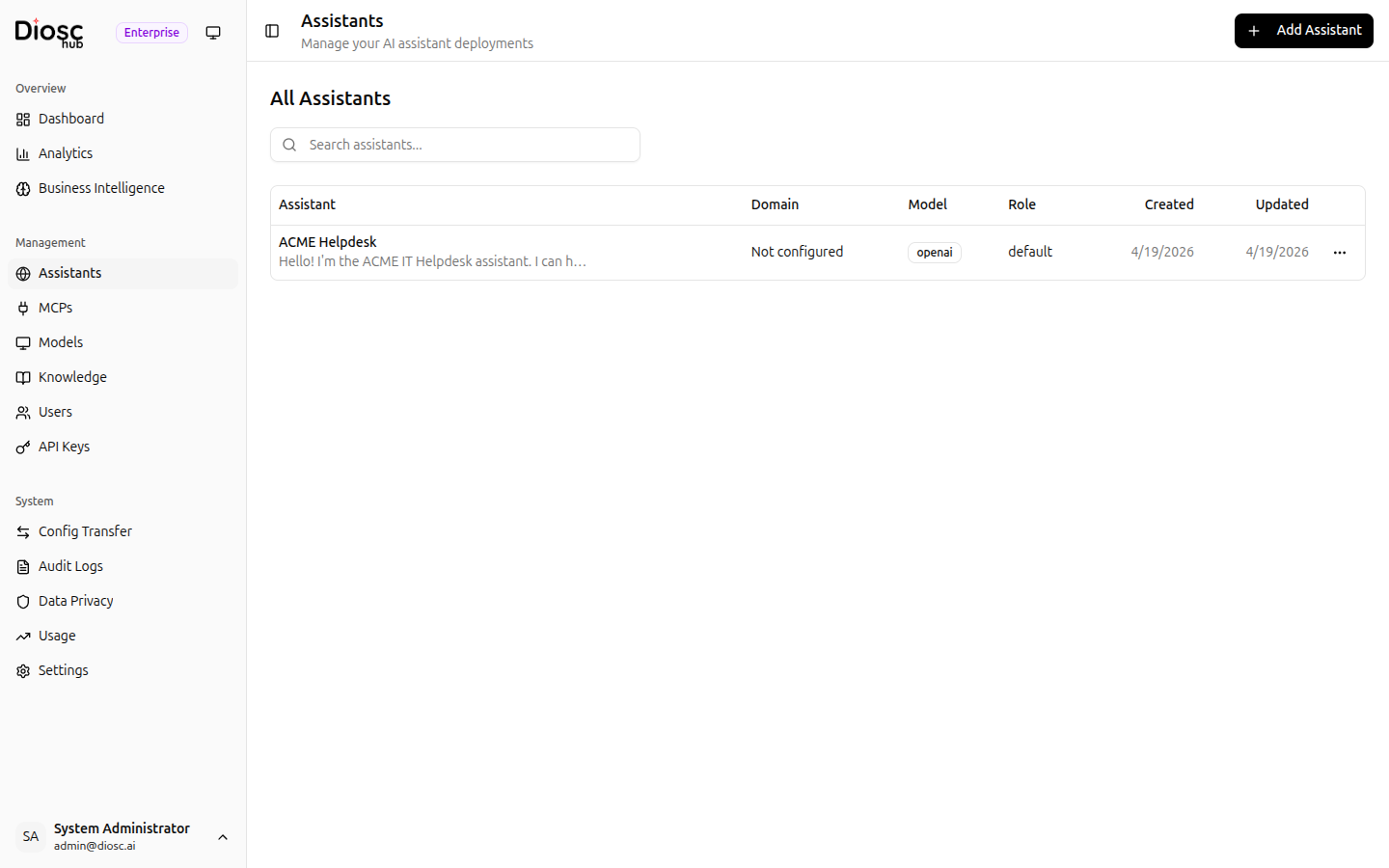
Each assistant shows:
- Assistant — Display name and greeting preview
- Domain — The domain this assistant serves
- Model — The configured LLM model
- Role — The default role
- Created / Updated — Timestamps
From the list you can:
- Search for assistants by name
- Click + Add Assistant to create a new one
- Click an assistant to open its Settings
- Use the ... menu to delete an assistant
Creating an Assistant
Click + Add Assistant to set up a new assistant.
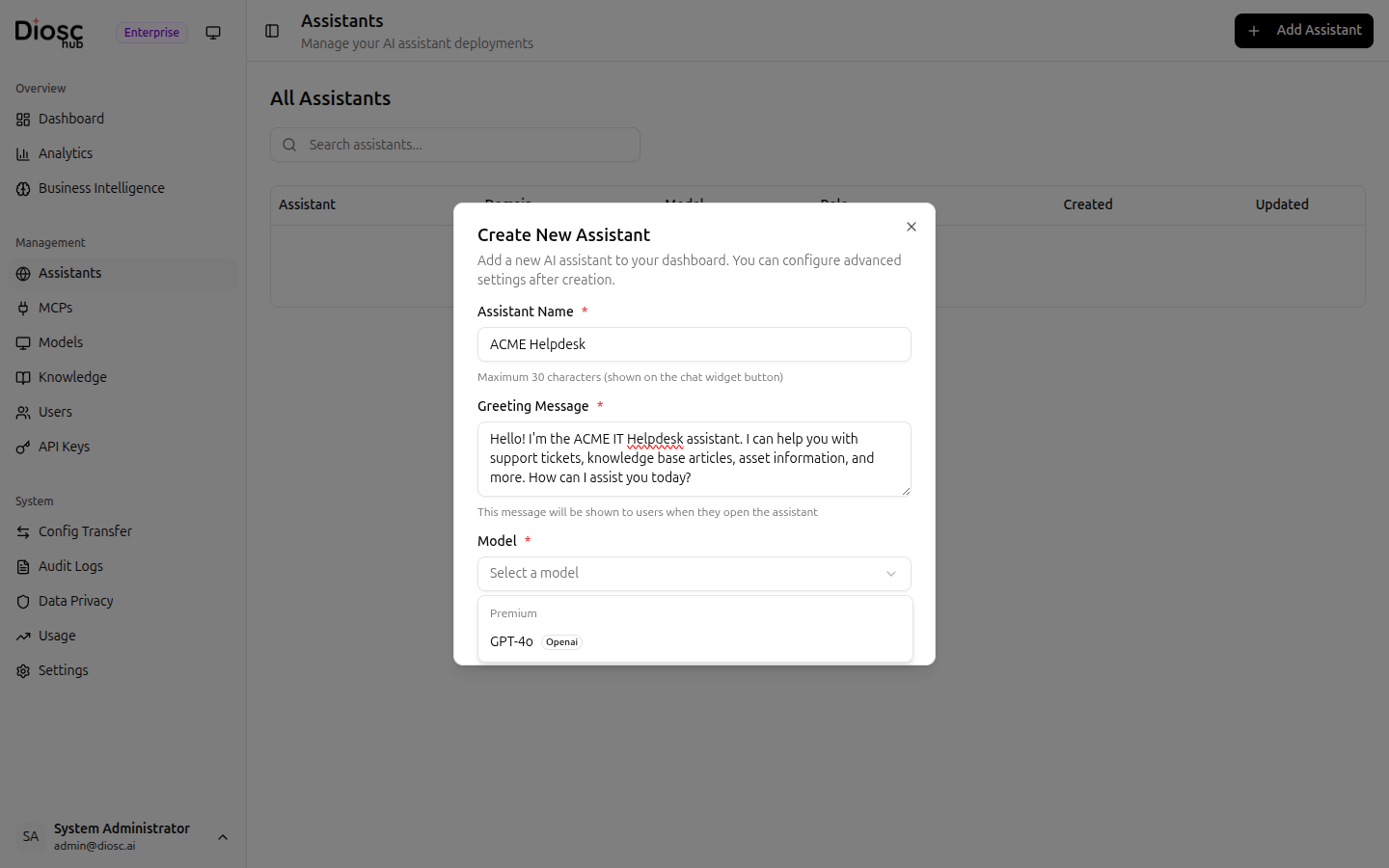
| Field | Description | Required |
|---|---|---|
| Assistant Name | Display name shown on the chat widget button (max 30 characters) | Yes |
| Greeting Message | Welcome message shown to users when they open the assistant | Yes |
| Model | LLM model from the catalog, grouped by tier (Premium / Standard / Budget) | Yes |
The model picker shows all available models grouped by category with a provider badge. If the selected model's provider API key is not configured on the server, a warning is displayed.
A random colored avatar is automatically assigned to new assistants. Change it later in the assistant's General settings.
After creation, you are taken to the assistant's settings page to complete the configuration.
Configuration Tabs
Click an assistant to open its settings. The settings are organized into 10 tabs:
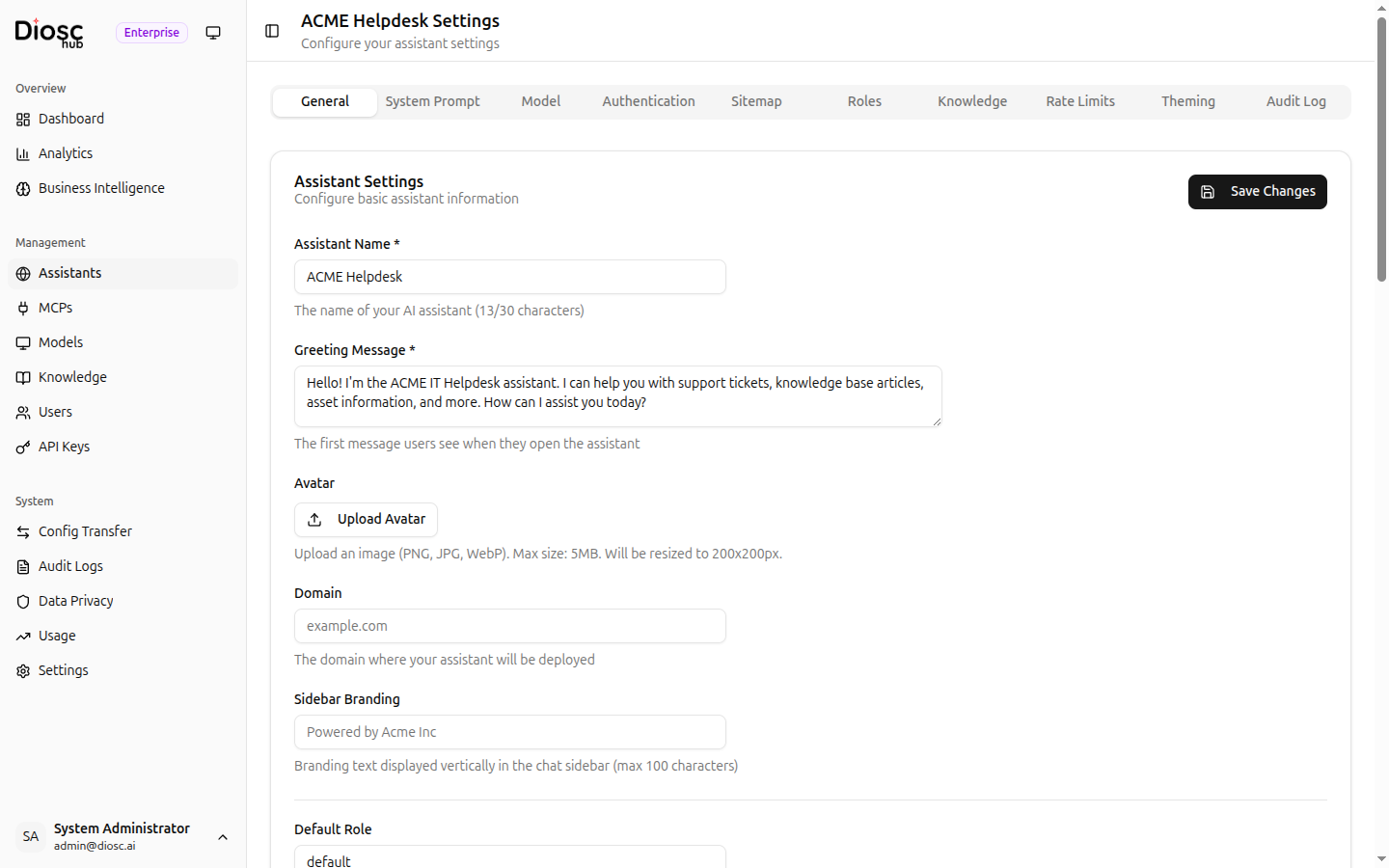
| Tab | Documentation |
|---|---|
| General | General & Authentication |
| System Prompt | System Prompt |
| Model | Model Configuration |
| Authentication | General & Authentication |
| Sitemap | Sitemap |
| Roles | Roles |
| Knowledge | Knowledge |
| Rate Limits | Rate Limits |
| Theming | Theming |
| Audit Log | Rate Limits |
Recommended Configuration Order
- Create — Set name, greeting, and select the model
- System Prompt — Define personality and instructions
- Model — Fine-tune temperature and max tokens
- General — Set domain, branding, and user resolution
- Authentication — Configure CORS and user identity resolution
- Sitemap — Define your application's navigation
- Roles — Set up role-based behavior
- Knowledge — Link knowledge bases for document search
- Theming — Customize the chat widget appearance
- Rate Limits — Review usage limits
Deleting an Assistant
To delete an assistant:
- Open the assistants list
- Click the ... menu on the assistant
- Select Delete and confirm
Deleting an assistant permanently removes all its configuration, roles, sitemap entries, and linked knowledge bases.