Sitemap
The Sitemap feature lets you define your application's navigation structure so the AI assistant can understand where users are and help them navigate. Each sitemap entry maps a URL pattern to a display name and optional placeholder resolvers.
Why Sitemap?
Without a sitemap, the AI doesn't know your application's page structure:
User: "Take me to the premium package"
AI: "I don't have information about your application's pages."
With a sitemap configured:
Sitemap entry: /products/{productId}/details -> "Product Details"
Placeholder resolver: productId -> search_products tool

User: "Take me to the premium package"
AI: *calls search_products("premium package")* -> navigates to /products/abc-123/details
Accessing the Sitemap
The Sitemap is configured per assistant. Navigate to:
Assistants > Select an assistant > Sitemap tab
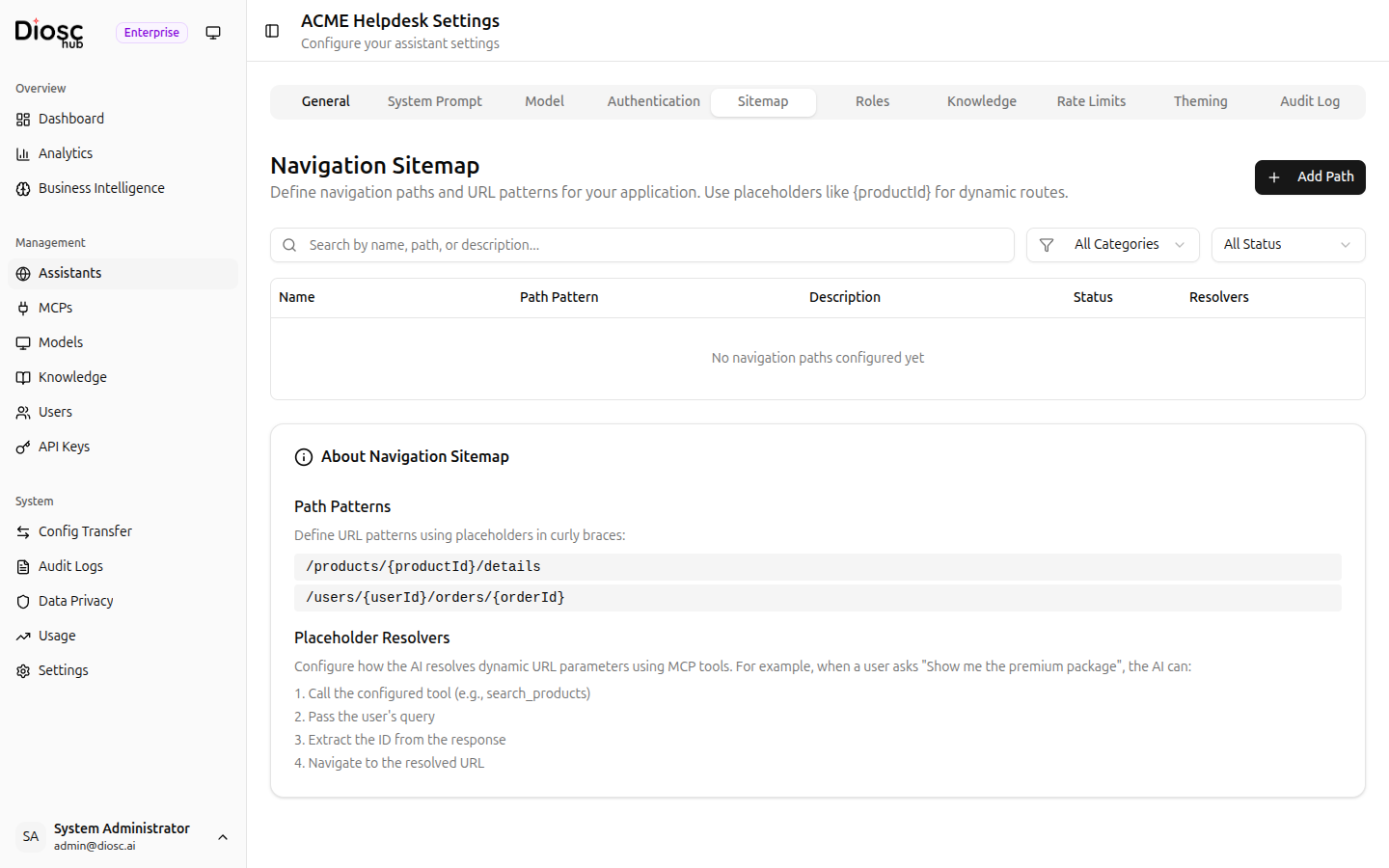
Sitemap Entries
Each sitemap entry defines a page in your application.
| Column | Description |
|---|---|
| Name | Display name for the page |
| Path Pattern | URL pattern with optional {placeholders} |
| Description | What this page is for |
| Status | Active/Inactive toggle |
| Resolvers | Shows "Configured", "Needs Setup", or no placeholders |
Filtering
- Search — Filter by name, path, or description
- Category — Filter by category (e.g., "products", "admin")
- Status — Filter by Active/Inactive
Creating a Sitemap Entry
Click + Add Path to create a new sitemap entry.
| Field | Description | Required |
|---|---|---|
| Path Pattern | URL pattern (e.g., /products/{productId}/details) | Yes |
| Display Name | Human-readable page name (e.g., "Product Details") | Yes |
| Description | Explains the page to the AI | No |
| Category | Grouping label (e.g., "products") | No |
Path Patterns
Use {placeholder} syntax for dynamic URL segments:
/products                         # Static path - Products list
/products/{productId}             # Single placeholder - Product page
/products/{productId}/details     # Placeholder in middle
/orders/{orderId}/items/{itemId}  # Multiple placeholders
Auto-Parent Detection
When you create an entry, Diosc automatically detects its parent based on the path prefix. For example:
/products/{productId}is automatically linked as a child of/products
The detected parent is shown in an info box before you save.
Placeholder Resolvers
When a path pattern contains {placeholders}, configure resolvers that tell the AI how to convert user queries into actual IDs.
Click Configure Resolvers (or the dropdown menu > Configure Resolvers) on any entry with placeholders.
For each placeholder, configure:
| Setting | Description | Required |
|---|---|---|
| Description | What this placeholder represents (e.g., "Product ID") | No |
| MCP Tool | The tool to call for resolving (e.g., search_products) | Yes |
| Input Parameter | Which tool parameter receives the user's query | Yes |
| Output Path | JSONPath to extract the ID from the tool response (e.g., results[0].id) | Yes |
| Search Hint | Guidance for the AI on how to search | No |
| Example Queries | Sample search terms to help the AI | No |
How Resolvers Work
- User says: "Show me the premium package"
- AI identifies the sitemap entry
/products/{productId}/details - AI calls the configured MCP tool (e.g.,
search_products) with the user's query - AI extracts the ID from the response using the output path
- AI navigates the user to
/products/abc-123/details
Resolver Status
In the sitemap table, each entry shows its resolver status:
- Configured (green badge) — All placeholders have resolvers configured
- Needs Setup (amber badge) — Some placeholders are missing resolver configuration
- No badge — Path has no placeholders (static path)
Hierarchy
Sitemap entries support parent-child relationships:
/products                           -> Products (parent)
  /products/{productId}             -> Product Detail (child)
    /products/{productId}/details   -> Product Details (grandchild)
/orders                             -> Orders (parent)
  /orders/{orderId}                 -> Order Detail (child)
Benefits:
- Organized structure that the AI can understand
- Parent paths auto-detected based on path prefixes
Sort Order
Each entry has a Sort Order field to control display ordering within the same level of the hierarchy.
Editing and Deleting
Editing
Click Edit from the dropdown menu to modify a sitemap entry. You can change:
- Path pattern
- Display name
- Description
- Category
Parent detection is re-evaluated when the path pattern changes.
Deleting
Click Delete from the dropdown menu. If the entry has children:
- A Cascade Delete toggle appears
- Enable it to delete the entry and all its children
- Otherwise, only the selected entry is deleted
Deleting a sitemap entry cannot be undone.
Best Practices
Define Your Full Navigation
Map all major pages in your application:
/dashboard                          -> Dashboard
/products                           -> Products
/products/{productId}               -> Product Detail
/products/{productId}/edit          -> Edit Product
/orders                             -> Orders
/orders/{orderId}                   -> Order Detail
/customers                          -> Customers
/customers/{customerId}             -> Customer Detail
/settings                           -> Settings
Configure Resolvers for All Placeholders
Every {placeholder} should have a resolver configured so the AI can navigate users to specific pages. Without resolvers, the AI can only navigate to static paths.
Use Descriptive Names
Good descriptions help the AI understand what each page is for:
Path: /orders/{orderId}
Name: Order Detail
Description: Shows full order details including items, shipping status,
payment information, and customer details. Users can view and manage
individual orders from this page.
Organize with Categories
Use categories to group related pages:
products— All product-related pagesorders— All order-related pagesadmin— Administrative pagesreports— Reporting pages
Next Steps
- Roles — Set up role-based behavior
- Knowledge — Link knowledge bases to the assistant
- MCP Servers — Connect the tools used by placeholder resolvers