Approval Policies
Approval policies require human approval before the AI executes sensitive operations. Use them for destructive actions, high-value transactions, or compliance requirements.
How Approvals Work
Policies List
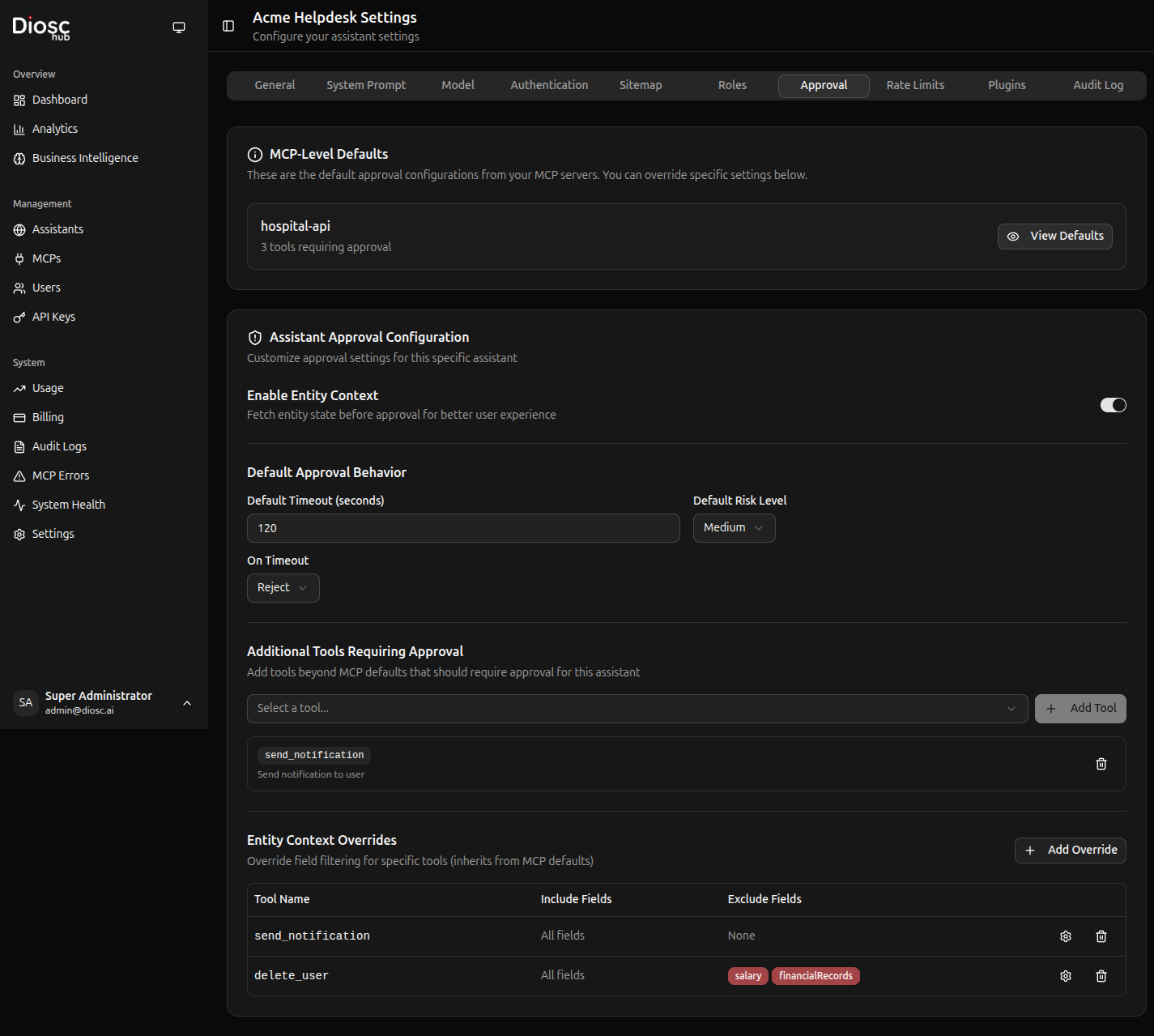
Navigate to an assistant's Approval tab to see all configured policies.
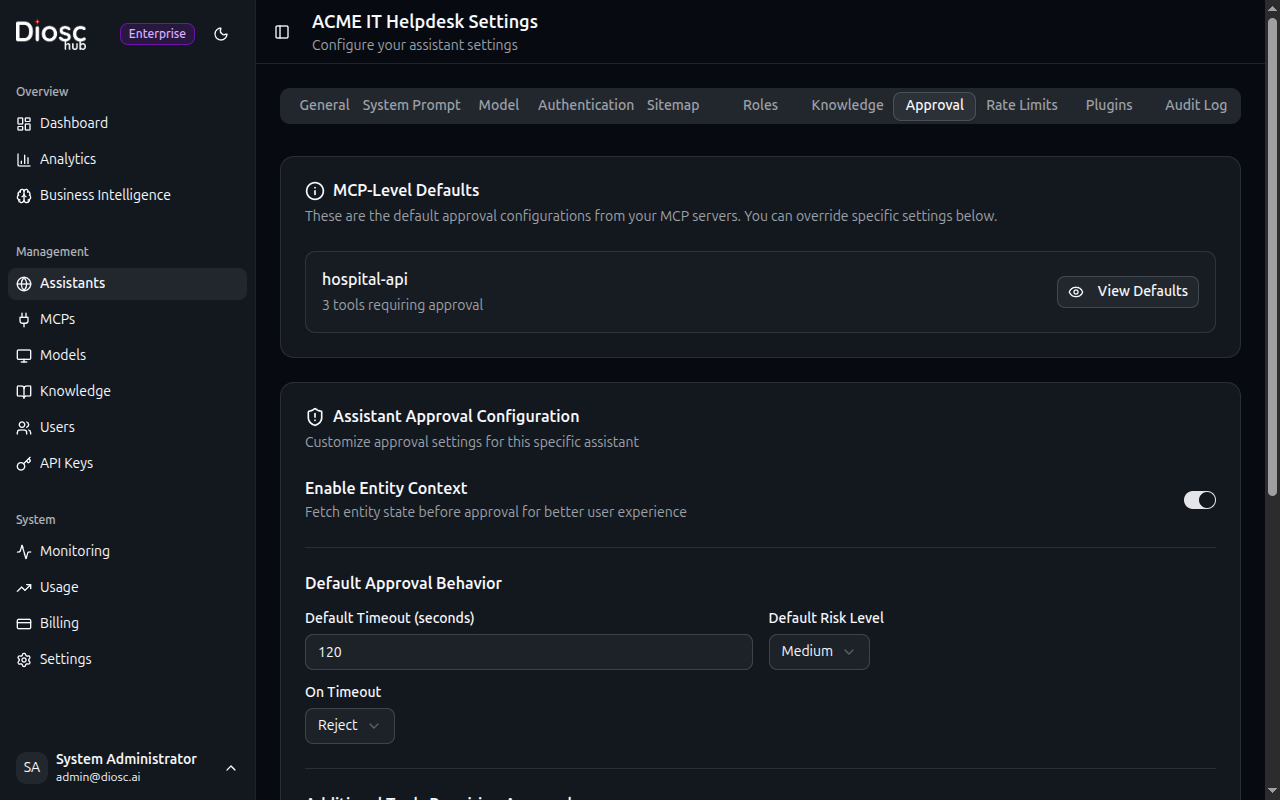
Each policy shows:
- Name — Policy identifier
- Tool Pattern — Which tools require approval
- Approvers — Who can approve
- Status — Active/Inactive
Creating a Policy
Click Create Policy to add a new approval policy.
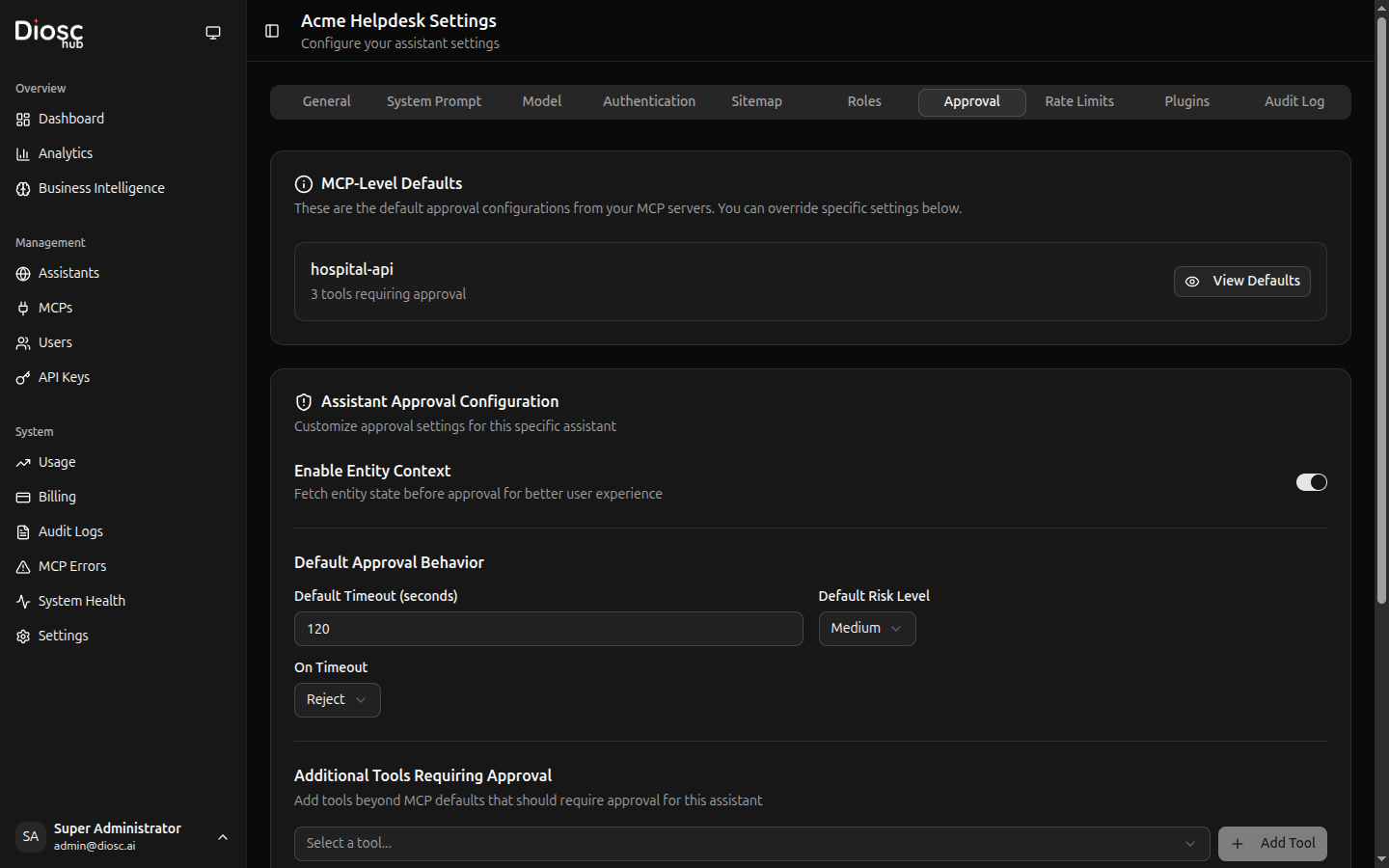
Basic Settings
| Field | Description | Required |
|---|---|---|
| Name | Policy identifier | Yes |
| Description | What this policy is for | No |
| Priority | Order when multiple policies match | Yes |
Tool Matching
Specify which tools require approval:
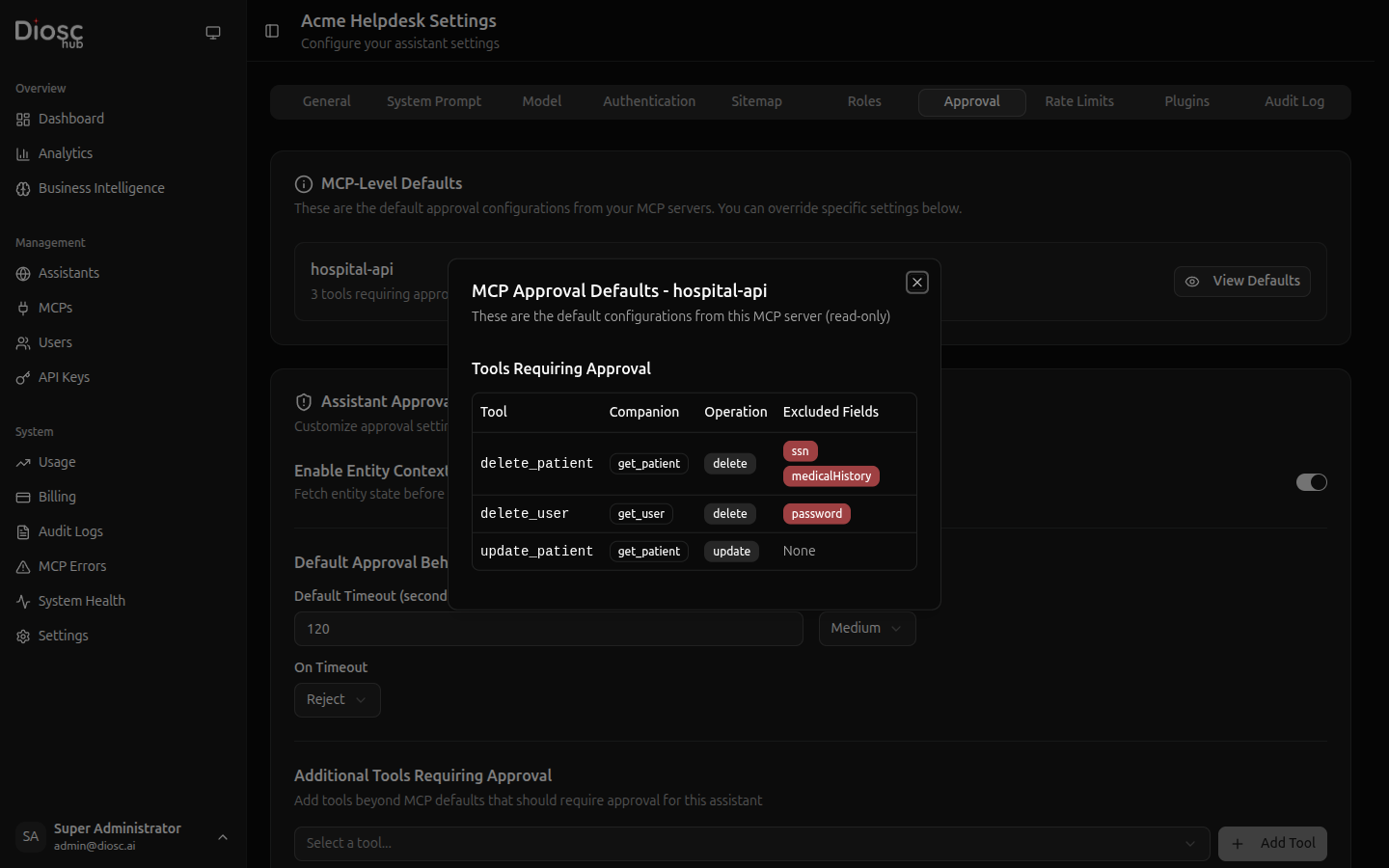
Pattern Examples:
delete_*           # All delete operations
*_admin            # All admin tools
transfer_funds     # Specific tool
order_*            # All order operations
Conditions (Optional)
Add conditions for when approval is required:
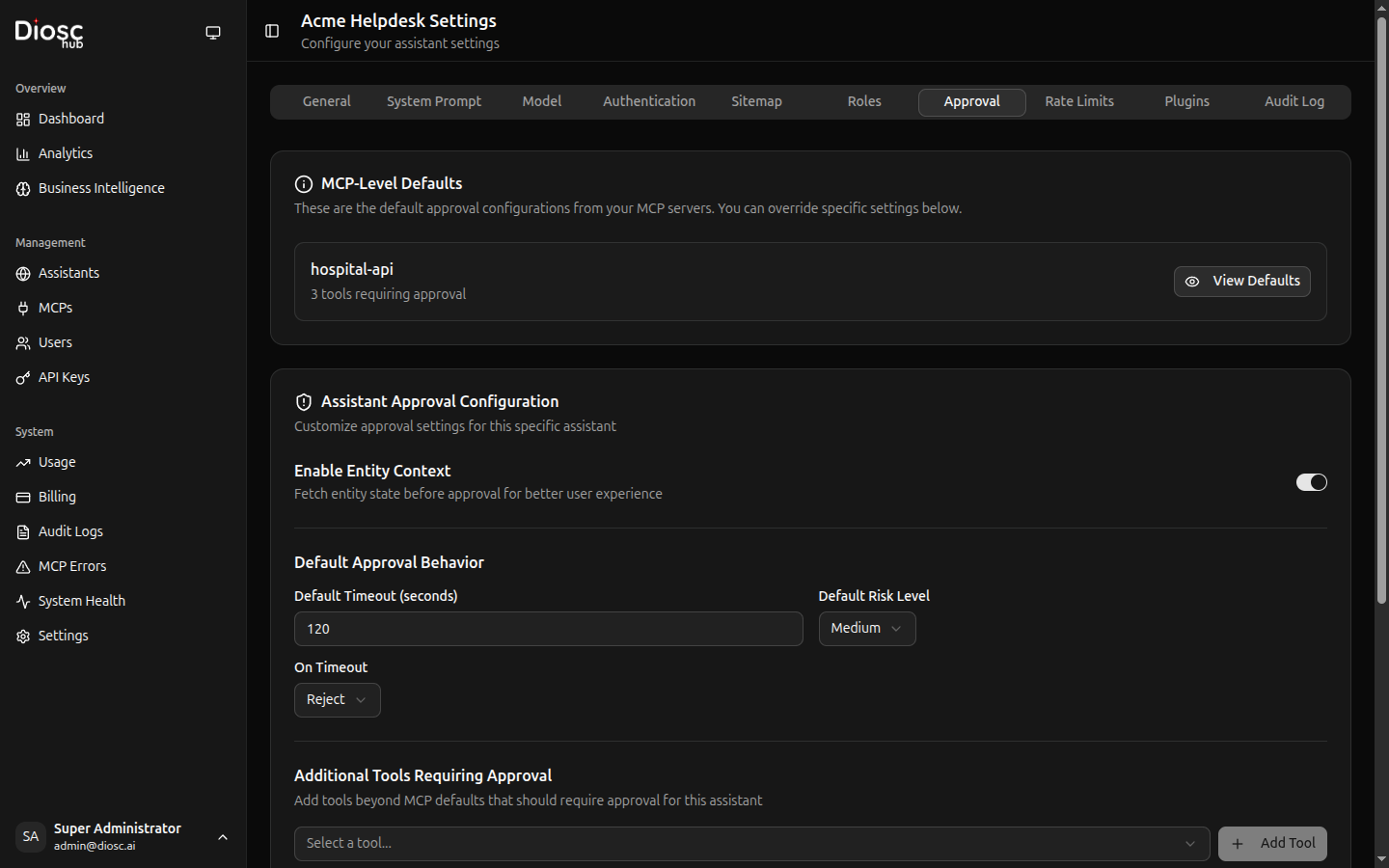
Amount-based:
{
  "condition": "args.amount > 1000",
  "description": "Transfers over $1000"
}
Role-based:
{
  "condition": "user.roles.includes('junior')",
  "description": "Junior employees need approval"
}
Time-based:
{
  "condition": "isOutsideBusinessHours()",
  "description": "After-hours operations"
}
Approvers
Define who can approve requests:
Options:
- Self — The user themselves (confirmation)
- Specific Users — Named users
- Roles — Users with specific roles
- External Webhook — Call external approval system
Approval Settings
| Setting | Description | Default |
|---|---|---|
| Timeout | How long before request expires | 5 minutes |
| Auto-reject on Timeout | Reject if not approved in time | Yes |
| Allow Comments | Require/allow approval comments | Optional |
| Notify Via | Notification channels | In-app |
Approval Interface
When approval is required, users see:
The request shows:
- Tool — What operation
- Arguments — What parameters
- Context — Why the AI wants to do this
- Approve/Reject buttons
Approving
Click Approve to allow the operation:
- Optionally add a comment
- Click Approve
- Tool executes immediately
- AI continues with result
Rejecting
Click Reject to deny the operation:
- Optionally add a reason
- Click Reject
- AI is informed
- AI suggests alternatives or explains
Approval Queue
Administrators can view all pending approvals:
Filter by:
- Status — Pending, Approved, Rejected, Expired
- Tool — Specific tool or pattern
- User — Who requested
- Date Range — Time period
Bulk Actions
For multiple pending approvals:
- Select multiple requests
- Click Approve All or Reject All
Approval Logs
View approval history:
Each log entry shows:
- Timestamp — When the request was made
- Tool — What was requested
- User — Who requested
- Approver — Who approved/rejected
- Decision — Approved/Rejected
- Comment — Any notes
Export logs for compliance reporting.
Policy Examples
Financial Operations
name: high_value_transfers
description: Require approval for transfers over $10,000
tool_patterns:
  - transfer_funds
  - wire_transfer
conditions:
  - "args.amount > 10000"
approvers:
  roles: ["finance_manager", "cfo"]
timeout: 30m
Destructive Actions
name: delete_operations
description: All delete operations require approval
tool_patterns:
  - delete_*
  - remove_*
  - purge_*
approvers:
  type: self  # User confirms their own request
timeout: 2m
Customer Data Access
name: sensitive_data
description: Accessing sensitive customer data
tool_patterns:
  - get_customer_ssn
  - get_payment_info
  - export_customer_data
approvers:
  roles: ["compliance_officer"]
  notify: ["[email protected]"]
timeout: 15m
After-Hours Operations
name: after_hours
description: Operations outside business hours
tool_patterns:
  - "*"  # All tools
conditions:
  - "hour < 9 || hour > 17"  # Before 9am or after 5pm
  - "dayOfWeek === 0 || dayOfWeek === 6"  # Weekends
approvers:
  roles: ["on_call_admin"]
timeout: 10m
Junior Employee Oversight
name: junior_oversight
description: Junior employees need approval for modifications
tool_patterns:
  - create_*
  - update_*
  - delete_*
conditions:
  - "user.roles.includes('junior') || user.tenure_months < 3"
approvers:
  roles: ["team_lead", "manager"]
timeout: 15m
External Approval Systems
Integrate with external approval workflows:
Webhook Configuration
approvers:
  type: webhook
  url: https://approval-system.example.com/api/approve
  headers:
    Authorization: Bearer ${APPROVAL_API_KEY}
  timeout: 60s
Webhook Request
Diosc sends:
{
  "approval_id": "apr_123",
  "tool": "delete_order",
  "arguments": {"order_id": "12345"},
  "user": {
    "id": "user_456",
    "email": "[email protected]",
    "roles": ["customer_service"]
  },
  "context": "User requested to cancel and delete order",
  "callback_url": "https://diosc-hub.example.com/api/approvals/apr_123/respond"
}
Webhook Response
External system calls back:
{
  "decision": "approved",
  "approver": "[email protected]",
  "comment": "Verified with customer",
  "timestamp": "2025-01-26T10:30:00Z"
}
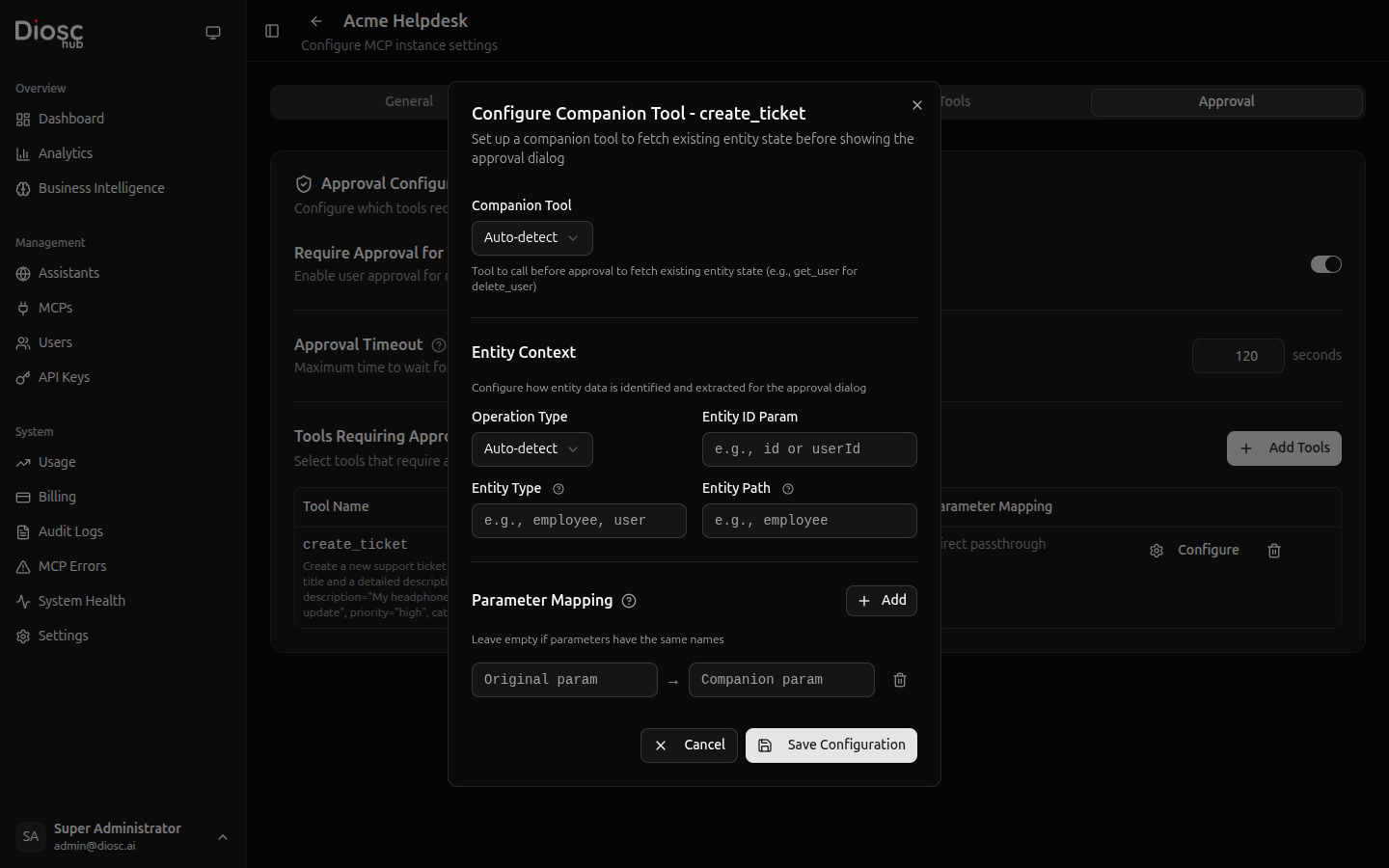
Entity Context (Diff Display)
When configured, approval dialogs show the current state of the entity being affected. This is especially valuable for update and delete operations where users need context before deciding.
What Users See
For a delete operation, the dialog shows entity details fetched via a companion tool:
┌─────────────────────────────────────────────┐
│  Approval Required               ⚠ Medium  │
├─────────────────────────────────────────────┤
│  Tool: delete_user                          │
│                                             │
│  Entity: User                               │
│  ┌─────────────────────────────────────┐    │
│  │ Name:       John Smith              │    │
│  │ Email:      [email protected]        │    │
│  │ Department: Engineering             │    │
│  │ Status:     Active                  │    │
│  └─────────────────────────────────────┘    │
│                                             │
│  Time remaining: 1:45                       │
│  [Reject]  [Edit & Approve]  [Approve]      │
└─────────────────────────────────────────────┘
For an update operation, a diff view shows current vs. proposed values:
| Field | Current | Proposed |
|---|---|---|
| Status | Active | Suspended |
| Department | Engineering | — |
| Role | Developer | Team Lead |
Configuring Entity Context
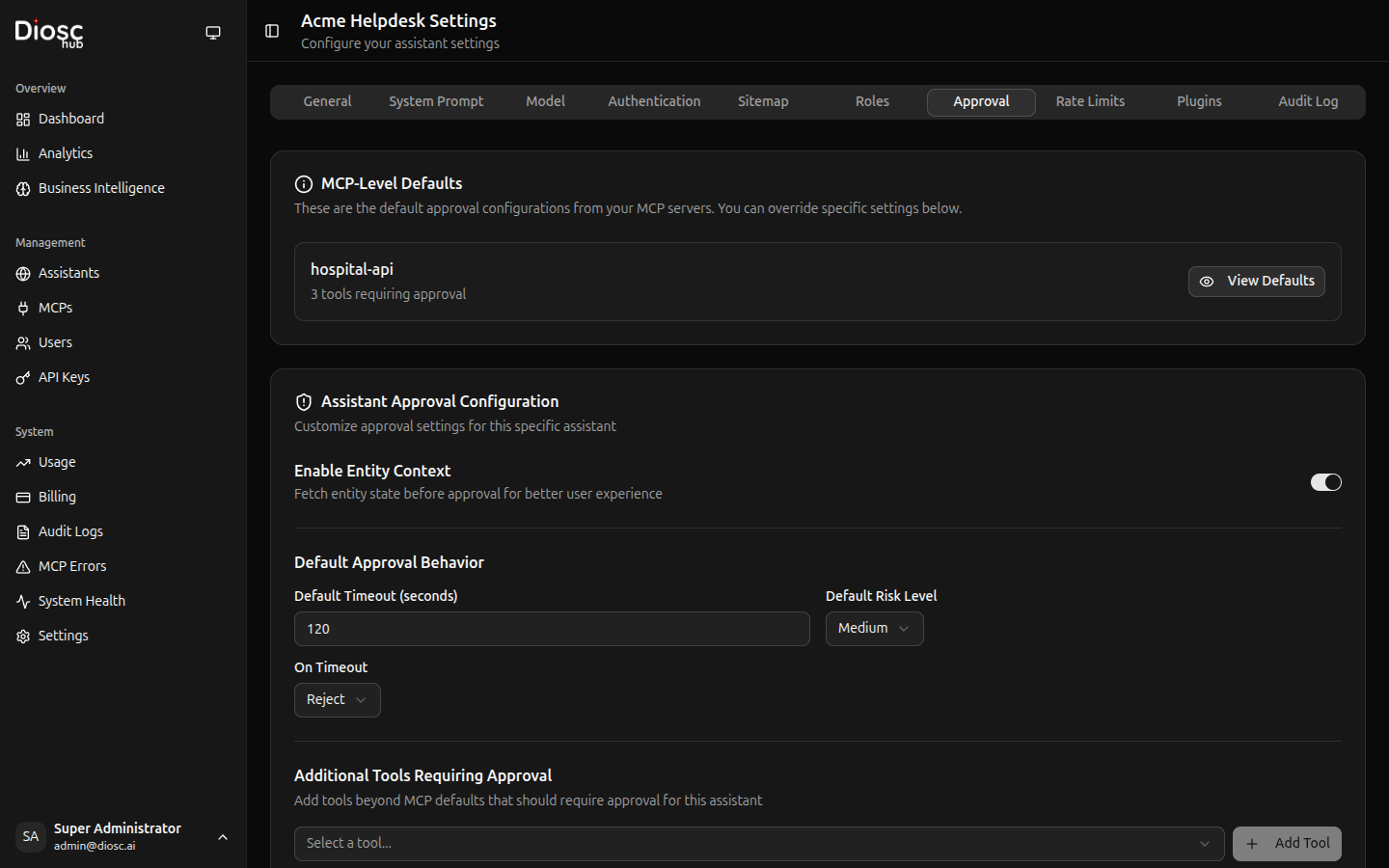
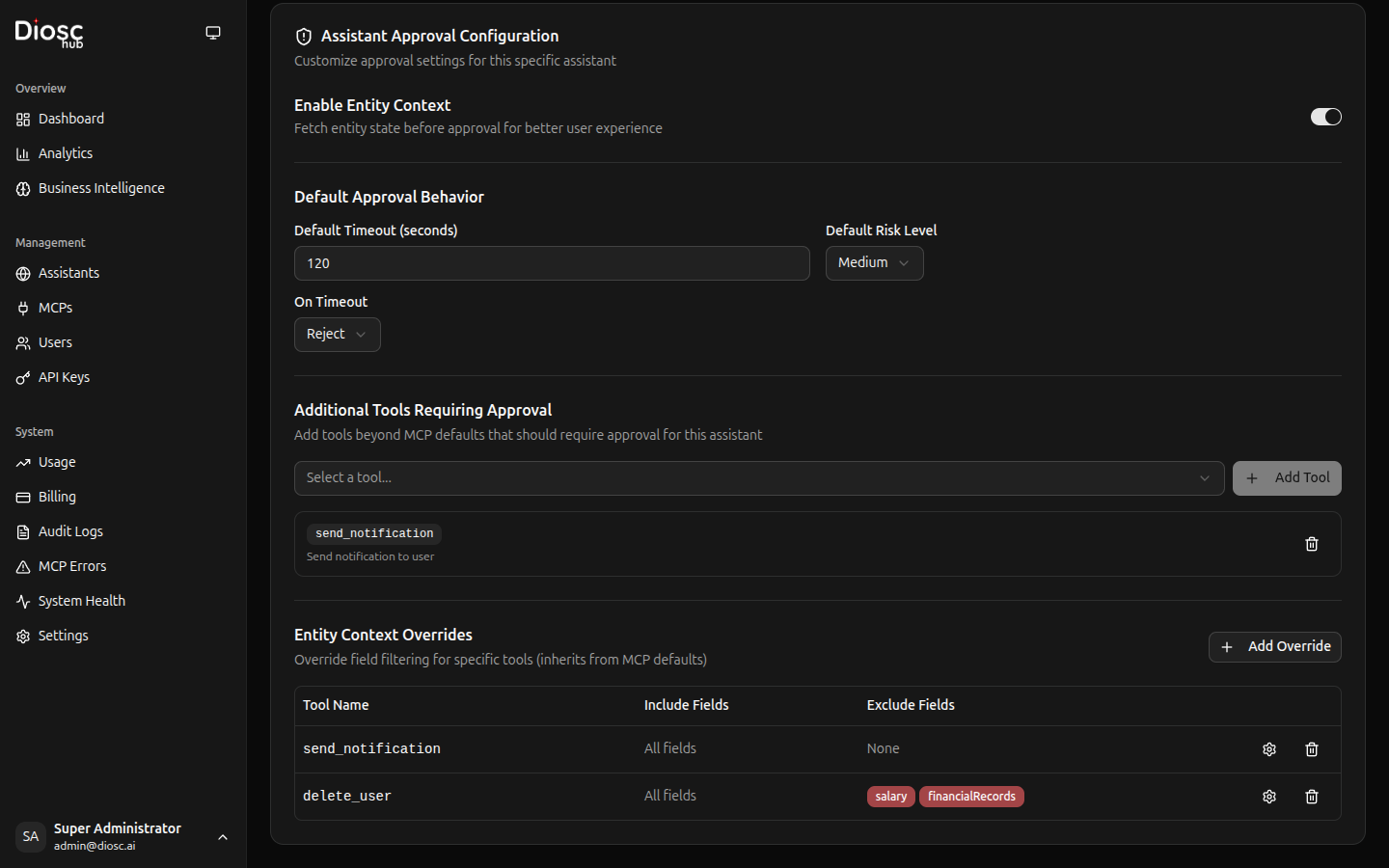
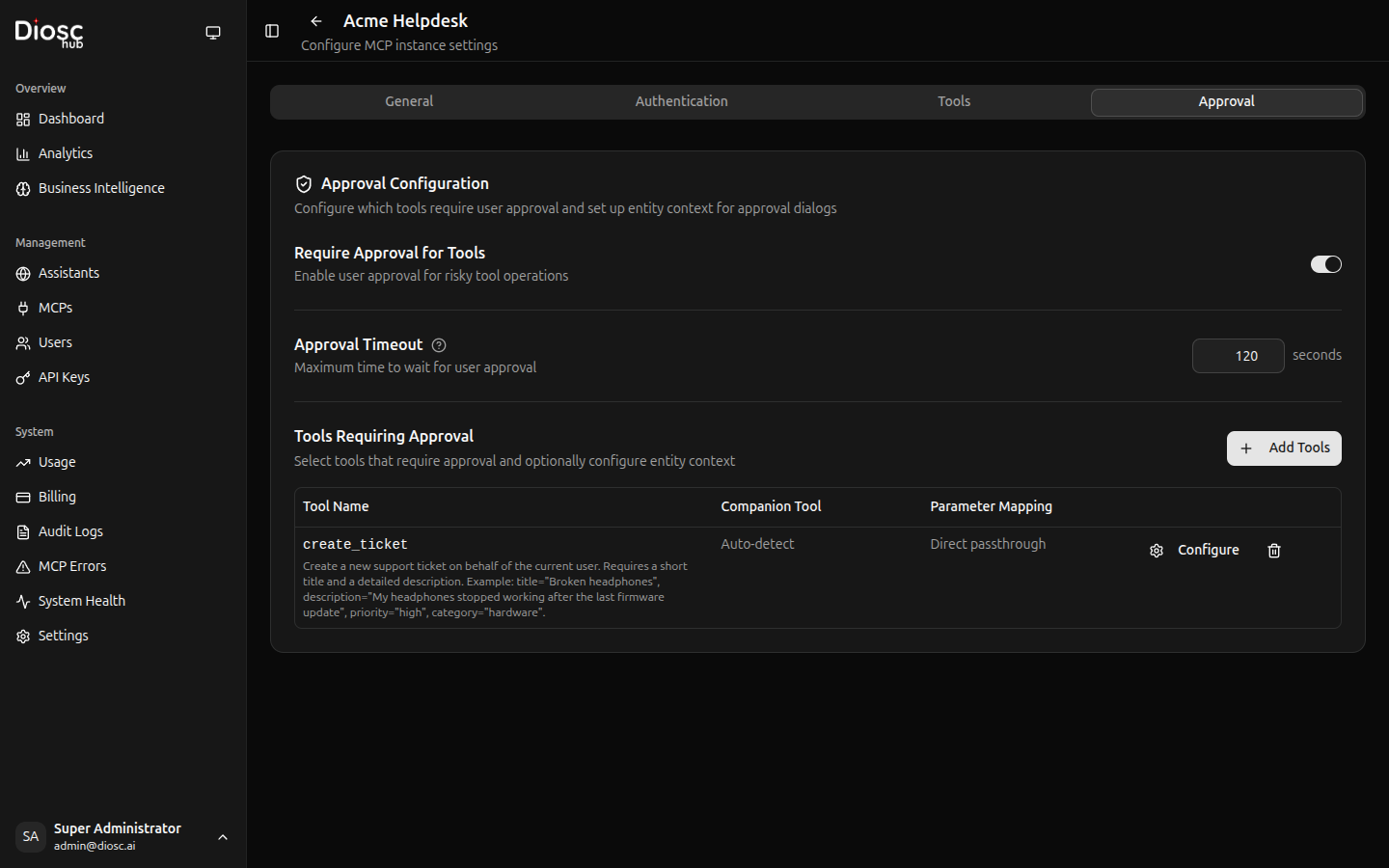
Entity context is set at the MCP server level. See MCP Configuration > Approval Settings for setup instructions.
Key configuration fields:
- Companion Tool — The read/get tool to fetch entity state (e.g.,
get_user) - Parameter Mapping — How to map action params to companion params
- Include/Exclude Fields — Control which fields appear in the dialog
Resilience Features
Page Refresh Recovery
If the user refreshes the page while an approval is pending, the approval is not lost. It is automatically restored when the page reloads.
Disconnect Handling
If the user loses their connection:
- The approval countdown pauses (preserving remaining time)
- On reconnect (within 1 hour), the dialog reappears with remaining time
- If no reconnect within 1 hour, the approval is auto-rejected
Countdown Pause
When a user opens the approval dialog to review details, the countdown timer pauses. It resumes when the user navigates away or closes the dialog.
Retry Limiting
To prevent loops, DioscHub limits a tool to 3 approval attempts per session. After the third rejection or timeout, the tool is blocked and the AI is informed.
Best Practices
Don't Over-Approve
Too many approval requests cause fatigue:
# Bad - every action needs approval
tool_patterns: ["*"]

# Good - only sensitive actions
tool_patterns: ["delete_*", "transfer_*"]
Set Appropriate Timeouts
Match timeout to operation urgency:
# Quick confirmation
delete_temp_file: 1m

# Thoughtful review
large_refund: 30m

# Compliance review
data_export: 24h
Use Conditions
Don't require approval for everything:
# Only large amounts
conditions:
  - "args.amount > 1000"

# Only junior staff
conditions:
  - "user.tenure_months < 6"
Audit Everything
Enable detailed logging:
- Who requested what
- Who approved/rejected
- When and why
- Full request context
Troubleshooting
Approvals Not Triggering
- Check policy is active
- Verify tool pattern matches
- Check conditions are met
- Review policy priority
Approvals Timing Out
- Increase timeout value
- Check notification delivery
- Verify approvers have access
Wrong Approvers
- Check role assignments
- Verify user resolver returns correct roles
- Review approver configuration
Approval policies can also be configured at the MCP server level. See MCP Configuration for tool-level approval settings.
Next Steps
- Roles — Configure role-based behavior
- MCP Servers — Manage tool sources
- Usage & Billing — Monitor approval statistics